
Key takeaways
A WordPress domain change is a URL mapping project, not a settings change. Back up and test a restore, change WordPress Address and Site Address, and run WP-CLI search-replace with a dry run first: a raw SQL REPLACE() breaks serialized values. Check wp-config.php, media and offload plugins, theme files and custom menu links, which search-replace can miss. Map every valuable old URL to its own new page with one 301, keep paths and query strings, verify both domains in Search Console, and keep the old domain redirecting until 404s stop rising.
You've bought the new domain, the rebrand is approved, and someone has asked when the site can move over. The tempting answer is to change two settings in WordPress, point DNS, and call it done. That's also how indexed pages, bookmarks, campaign links and years of internal links end up pointing at an address that no longer serves the site.
A WordPress site domain change works when you treat it as a URL mapping and redirect inventory project, not a settings tweak. The deliverable isn't a homepage that loads on the new domain. It's a tested map where every valuable old URL lands, in one permanent redirect, on its right new page.
Domain Change Checklist at a Glance#
A settings only move leaves old links stranded, so each task below has a done when test. Work in three phases and don't skip the inventory, because you'll need that list again for redirects and testing.
| Phase | Task | Done when |
|---|---|---|
| Before launch | Back up database, files and server configuration | Restore tested successfully on staging |
| Before launch | Lower DNS TTL if DNS or hosting will change | TTL reduced before the switch |
| Before launch | Inventory old URL formats, http/https, www, uploads, CDN hosts | Full URL list saved as a mapping sheet |
| Launch | Update WordPress Address and Site Address | Dashboard and front end load on the new domain |
| Launch | Run WP-CLI search-replace after a dry run | Zero unintended old-domain references remain |
| Launch | Set a 301 redirect for every mapped URL | Test requests return one 301 to the right page |
| After launch | Verify the new domain and submit change of address in Search Console | Property verified and move submitted |
| After launch | Submit the new XML sitemap | Sitemap fetched without errors |
| After launch | Monitor 404s, redirect chains and organic landing pages on both domains | Error counts stay flat over the monitoring window |
This discipline matters at scale. W3Techs[1] reports that WordPress runs 39.3% of all websites and 58.0% of websites whose content management system it can identify (as of 11 November 2026). You're not handling an edge case. You're moving the platform that underpins a large share of the web, with all its stored URLs.
Before launch, your job is reversibility and evidence. At launch, it's clean replacement. After launch, it's proof. If you want a broader view of the traffic risks during a move, DesignStack's guide to preserving search traffic[2] is a useful companion to the table above.
How to Update Settings and Search-Replace the Database#
Do this on staging first if you can. You'll break access to the dashboard if the new domain isn't resolving yet, and that's an avoidable problem.
The Steps in Order#
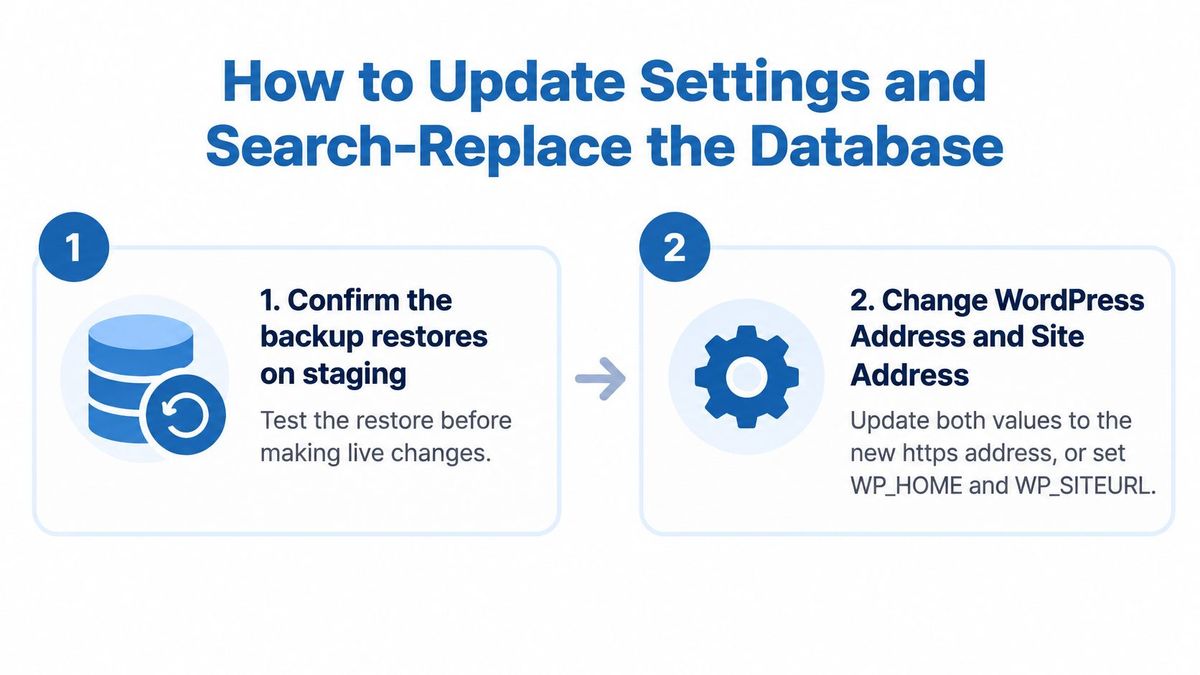
- Confirm the backup restores on staging. Back up the database, files and server configuration, then restore them somewhere safe. Write down the current WordPress Address and Site Address so you can reverse the change quickly.
- Change both address values. Under Settings > General, set WordPress Address and Site Address to the new https address. If you can't reach the dashboard, set WP_HOME and WP_SITEURL in wp-config.php instead. These two values drive most URL generation in WordPress.
- Run a dry run first. Run
wp search-replace 'https://old-domain.com' 'https://new-domain.com' --dry-run --skip-columns=guidand read the replacement count for each table. The WP-CLI search-replace documentation[3] describes a command that intelligently adjusts PHP serialized values. If a table you expect to change shows zero, stop and find out why. - Run the replacement. Run the same command without
--dry-run, adding--networkon multisite installs. Repeat it for other old formats you inventoried, such as the http version, the www version and any CDN hostname. - Resave Permalinks. Go to Settings > Permalinks and save without changing anything. That flushes rewrite rules, and you should then check that .htaccess or your server config still holds custom rules you need.
- Purge every cache layer. Clear page, object and CDN caches. Stale cache will show you a site that looks fixed while visitors still get old URLs, or the reverse.
The Mistake That Corrupts Layouts#
Don't use a raw SQL REPLACE() query in phpMyAdmin. Widgets, theme options and page builder layouts store PHP serialized values, and serialized strings store their own lengths. A raw replacement changes the text without fixing the length, so the data stops unserializing and settings vanish. WP-CLI rewrites those lengths correctly, which is why this step belongs to WP-CLI, not to SQL alone.
Skip the guid column for the same reason of caution. It's an identifier for existing posts, not a display URL, and it shouldn't change unless you have a specific reason.
Test canonical tags, the XML sitemap, feeds and REST endpoints too. They fail without obvious errors and only show up later in Search Console.
Updating wp-config, Media and Internal Links#
Search-replace fixes the database. Plenty of URLs live outside it, and one missed template can keep sending visitors back to the old address for months.
What to Check by Location#
- wp-config.php: Look for hard coded WP_HOME and WP_SITEURL constants and any other
define()line pointing at the old domain. Update them or remove them so the database values win. A leftover constant overrides Settings > General and makes the dashboard fields look greyed out and unchangeable. - Media settings and offload plugins: Attachment URLs in posts and options are covered by search-replace, but check the upload path in Settings > Media. Then check any CDN or media offload plugin that rewrites image addresses to its own hostname, because those settings sit in the plugin and may still reference the old domain as the origin.
- Theme files and custom code: Search template files, custom CSS and JavaScript for the old domain. Hard coded logo links, footer links and asset URLs are common here. Do the same for email templates from form or shop plugins, where confirmation messages often carry a full URL.
- Menus and widgets: Menu items added as custom links hold the full old address. So do text widgets and button blocks pasted in years ago. They are in the database, but only if the exact format matched your search string.
A fast check catches most of this. View the page source of the homepage, one long post and one category archive, then search the source for the old domain. Any hit needs a decision, keep, replace or redirect.
Check what your SEO plugin generates from the site address too. Canonical tags, Open Graph URLs and the XML sitemap should regenerate on the new domain after caches clear. If the canonical still names the old domain, you're telling Google the old page is the original.
How to Map Old URLs to New Ones#
Sending every old URL to the homepage is the fastest way to lose rankings. It hides which pages moved, dumps visitors in the wrong place, and ignores page level continuity.
The map below is the kind of working sheet you should build before launch day.
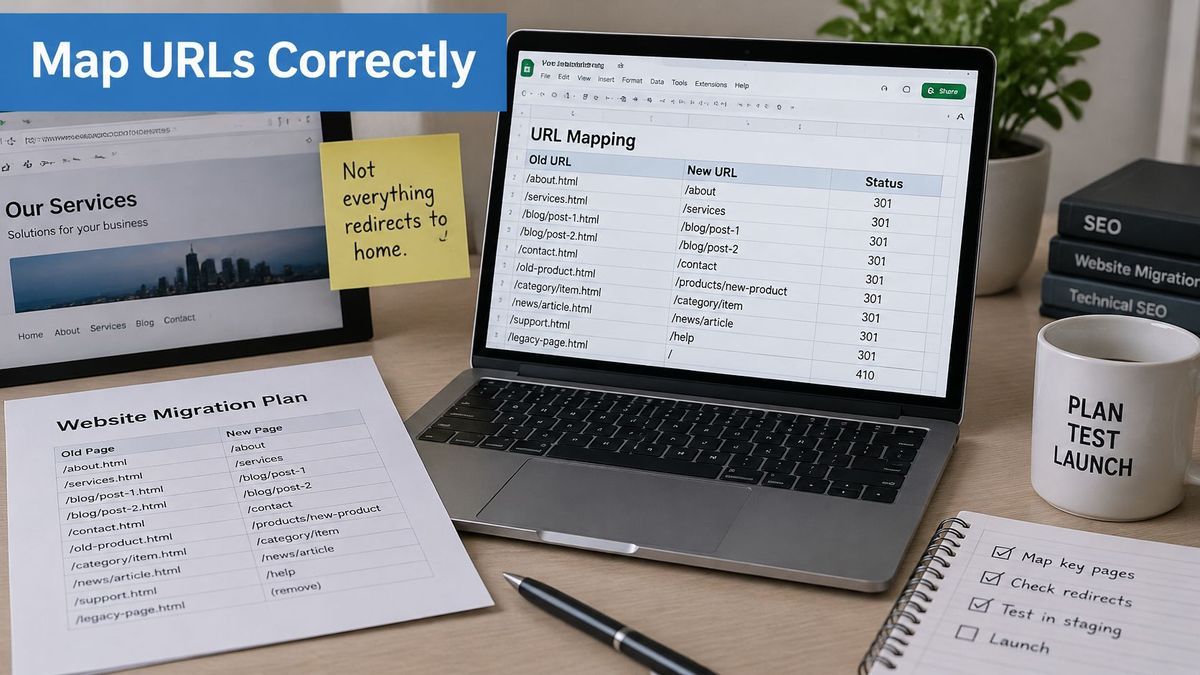
Google's site move guidance[4] recommends preparing a map of old URLs to their new equivalents and configuring server side redirects before or as the move begins, using permanent HTTP redirects, including 301 and 308 responses, when possible. That timing matters. Redirects added a week later don't recover the crawls that already hit dead URLs.
Building the Inventory#
No single source lists everything, so combine several.
- XML sitemap: Gives you the URLs you currently intend to index.
- Search Console performance report: Shows the pages that earn impressions and clicks.
- Analytics landing pages: Use a full year, so seasonal and campaign pages appear.
- Server access logs: Reveal old URLs that still receive hits from bookmarks and other sites.
- A crawl of the old site: Finds orphaned pages, attachment pages and archives nobody remembers.
Add the legacy layer on top, old slugs, category and tag archives, pagination, feeds and campaign links carrying utm parameters. Then decide per URL. Most get the most relevant new equivalent. Pages that are gone for good should return 404 or 410 rather than redirect to something loosely related. Understanding what a 301 redirect signals helps you make that call consistently.
Keep path and query intact where the page kept its URL. If old-brand.com/pricing?utm_source=x becomes newbrand.com/pricing?utm_source=x, attribution survives and the visitor lands where the campaign promised. Avoid chains where the old URL goes to an intermediate address first.
Store the finished map in one tracked place. RedirHub's website migration mappings let you import that sheet as a CSV, keeping the path for unchanged pages and mapping each changed URL to its new page. Finish by sampling high traffic and high link URLs and confirming each returns one 301 to the right page.
Choosing Between a WordPress Plugin and Integration Mode#
The key question is where your redirect rules should live. That decision determines who can edit them, whether they survive a rebuild, and whether you can see what's being hit.
| Option | Where the rules live | Best fit | Trade-off |
|---|---|---|---|
| WordPress redirect plugin | Inside the WordPress install | Small site with a short, stable list of mapped URLs | Rules are tied to one WordPress site |
| RedirHub Integration Mode | Managed in RedirHub and fetched by the site every 60 seconds | Teams keeping existing DNS and hosting who need tracked mappings | An AI coding agent writes the integration, which must be reviewed and deployed |
| RedirHub DNS-connected domain redirect | Served from RedirHub after the old domain's DNS points to it | Retiring the old domain completely | The old domain's DNS record points to RedirHub; the domain stays at its registrar |
A plugin is fine for a small, stable list. Use one when the map fits on one screen and the same person who runs WordPress owns the redirects. The limits show up when rules multiply, when several sites share a campaign, or when a future rebuild wipes the plugin's table.
RedirHub Integration Mode takes a different route. The Integration Mode launch notes describe a setup launched in November 2026 where the WordPress site keeps its DNS and hosting and serves redirects itself through a small single file integration. An AI coding agent writes it from RedirHub's tested WordPress prompt, and you review and deploy the code. Ownership is verified through a check path on your own domain, so there's no DNS change.
Once it's live, the integration fetches one plain text rules file every 60 seconds, so edits take effect within about a minute without a redeploy. Specific rules run before WordPress pages, the catch all answers only on real 404s, and it fails open if it can't fetch rules, so your site keeps serving normally. Visits are reported back for tracking, and it can report the 404s your site returns, which is how you find missed URLs after launch. Every RedirHub plan includes Integration Mode. If you'd rather compare plugin options first, this overview of the WordPress redirect plugin route sets out the trade offs, and this guide on how to redirect a URL in WordPress covers plugin setup step by step.
For the old domain itself, use a separate tool. When a hostname is retired after a rebrand or merger, point its DNS to RedirHub for a DNS connected domain redirect with path and query forwarding. No nameserver change is needed, the domain stays with your registrar, and email records aren't touched.
Use a 301 when the move is permanent and a 302 only while you're still testing.
How fast the old domain's redirects answer#
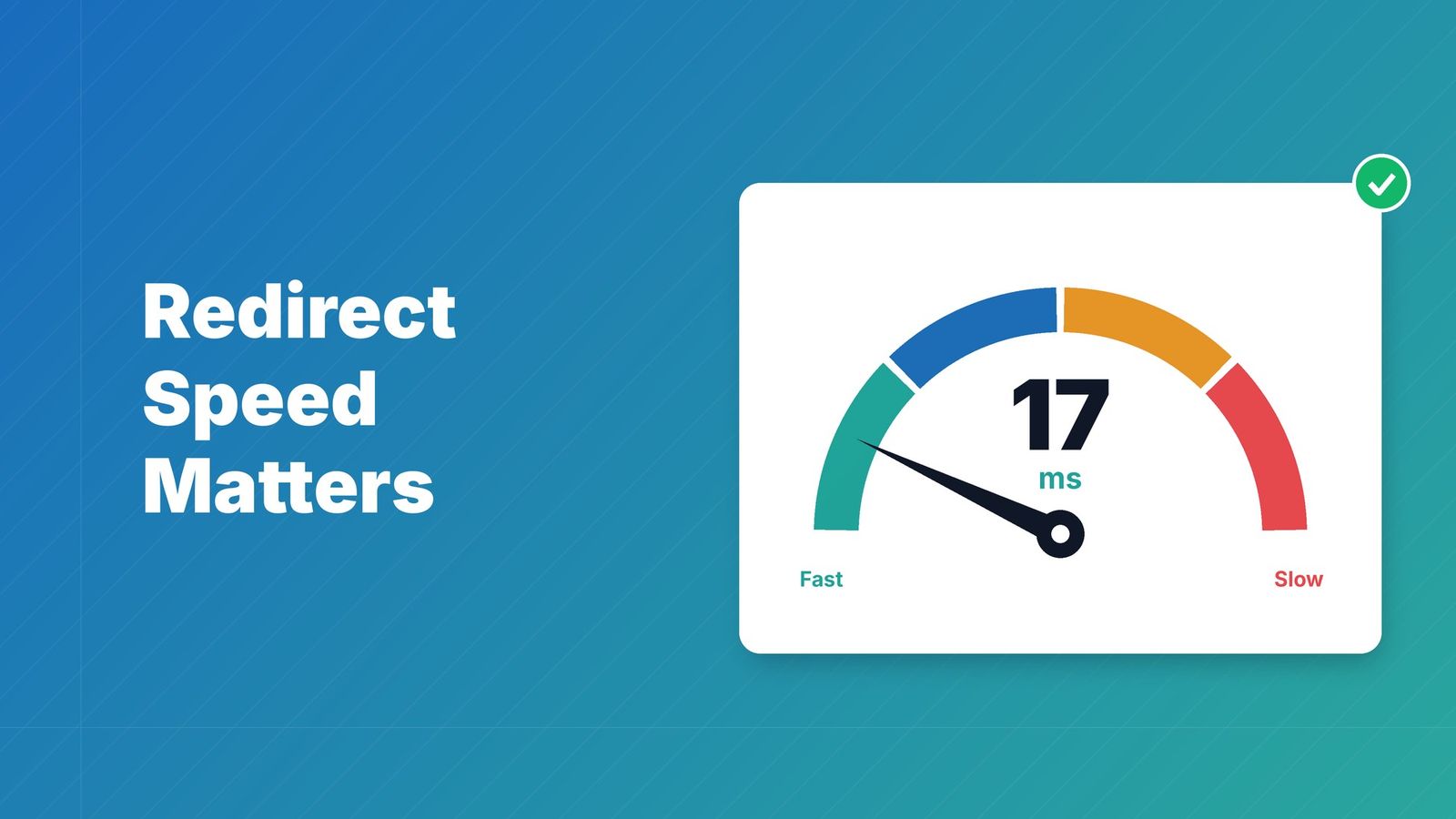
Every visit to an old URL now waits for a redirect before the new page starts loading, so where the rules run shows up in the timing. The RedirHub redirect speed benchmark[5] measured 27 providers' redirect URLs from Washington, D.C., Frankfurt and Tokyo between 4 and 11 November 2026, timing the first byte over a fresh connection without following the redirect. Redirects answered by Apache and nginx, web servers that many WordPress hosts run, took far longer than redirects answered at the edge (medians, averaged over the three locations):
| Provider | Median time to first byte (ms) |
|---|---|
| Amazon CloudFront (fastest in the set) | 12 |
| RedirHub | 17 |
| Cloudflare | 35 |
| nginx | 291 |
| Apache | 457 |
The figures cover the servers' own redirects in the set, not a particular WordPress host or plugin, and a redirect served by PHP inside WordPress also waits for WordPress to load. Look up Apache and nginx on their own pages, or run an old URL through the speed test before and after the move.
Post-Launch Checks and Retiring the Old Domain#
Add the new domain in Search Console and verify it before you start the change of address from the old property. Google needs both properties verified to process the move. If you're setting up the new property from scratch, it helps to know how to get your WordPress site into Google[6] so verification and sitemap submission happen in the right order.
Submit the change of address, then submit the new XML sitemap. The supporting work around sitemaps and canonicals that keeps visibility intact during the move is covered in this overview of the SEO side of a domain change.
Your Monitoring Routine#
- Spot check redirects with a header tool: Request the homepage, one deep page and one URL that carries a query string. Each should return a single 301 to its mapped destination.
- Hunt chains and loops: Every old URL should reach its target in one hop. The WordPress migration guidance[7] walks through the settings that can leave old addresses in place, and any chain you find should be collapsed into one direct 301 to the final page.
- Track landing pages on both domains: Organic sessions should shift to the new domain while direct hits on the old domain fall.
- Compare indexed counts weekly: A steady drop on the new domain means something is blocking indexing.
- Review 404s weekly for the first month: A spike tied to one unmapped page calls for a specific rule, rather than a catch-all that sends everything to the homepage.
Structured website migration testing turns this routine into a repeatable check instead of a task that depends on whoever happens to look. Mature sites accumulate legacy rules across .htaccess, plugins, hosting dashboards and CDN settings, so keep a single inventory of where each redirect lives and when it went live.
When the Old Domain Can Retire#
The calendar is the wrong trigger for this decision. Retire the domain when every check in the gate passes.
- Homepage and deep pages: Each returns one permanent redirect to the right destination.
- Top traffic and campaign URLs: Each works with its path and query string intact.
- No chains or loops remain: Confirmed by test requests against the full URL map.
- 404s have stopped rising: The error count stays flat across the monitoring window.
Run the gate against the whole map, row by row, because the URLs nobody spot checks are usually the ones still holding inbound links. Until the gate passes, keep the old domain registered, redirecting and verified in Search Console. Letting it lapse hands those links to whoever registers it next.
Move your WordPress domain without losing a URL
Import your old-to-new URL map, keep paths and query strings, and serve the redirects from WordPress with Integration Mode or retire the old domain with a DNS-connected redirect.
See website migrationsSources
- [1]Usage Statistics and Market Share of WordPress, November 2026
- [2]The 2026 Website Migration SEO Checklist: 10 Steps
- [3]wp search-replace – WP-CLI Command
- [4]Site Moves and Migrations | Google Search Central
- [5]RedirHub redirect speed benchmark, 4–11 November 2026
- [6]Add WordPress Site to Google Search the Right Way
- [7]Moving WordPress – Advanced Administration Handbook
Frequently asked questions
Back up the site and test a restore, then set WordPress Address and Site Address to the new https address under Settings > General, or in wp-config.php if you can't reach the dashboard. Run WP-CLI search-replace for every old URL format, resave permalinks, purge caches and add a 301 redirect for each mapped old URL.
Not safely. Widgets, theme options and page builder layouts store PHP serialized values that record their own string lengths, and a raw SQL REPLACE() breaks them. WP-CLI search-replace adjusts serialized values; run it with --dry-run first and skip the guid column.
No. Map each valuable old URL to its most relevant new page with one permanent redirect, keeping path and query string where the page kept its URL. Pages that are gone for good should return 404 or 410 instead of redirecting to something loosely related.
Yes. Verify the new domain in Search Console, then submit a change of address from the old property; both properties must be verified. Submit the new XML sitemap afterwards and watch indexing and 404s on both domains.
Until every check passes: the homepage, deep pages and top campaign URLs each return one 301 to the right page, no chains or loops remain and 404s have stopped rising. Keep the old domain registered after that, because letting it lapse hands its inbound links to whoever registers it next.

Leo Astarothman is the Brand & Content Lead at RedirHub, where he shapes the company's visual identity, educational content, product experiences, and marketing strategies. He also specializes in system design. Simplifying complex redirect infrastructure into practical resources, product experiences, and campaigns that help businesses understand and adopt modern redirect management.
Related Articles
View All Articles