
Use a CSV file to create or update many links at once, for example during a website migration, or to remove links you no longer need. One file can hold whole-domain links and path links. RedirHub shows exactly what the file will do before anything is written. CSV import is available on every plan.
Step 1: Upload your file#
In Links, click Create and choose Import CSV at the bottom of the window. Upload your file and choose whether it should Create or update links or Remove them. The same screen handles both.
Step 2: Review what the import does#
The review shows the headline counts (domains and links added, links updated, rows skipped because they already match) and splits the file into Whole-domain links and Path links. Below it you see:
- Uses from your plan, and bars for Domains and Managed links showing your usage before and after the import.
- www rows their root already covers. They are left out by default.
- New domains that need a DNS record before their links work. They are added to Hostnames on import.
- Where the links are: how many links land on each domain, with new domains marked New.
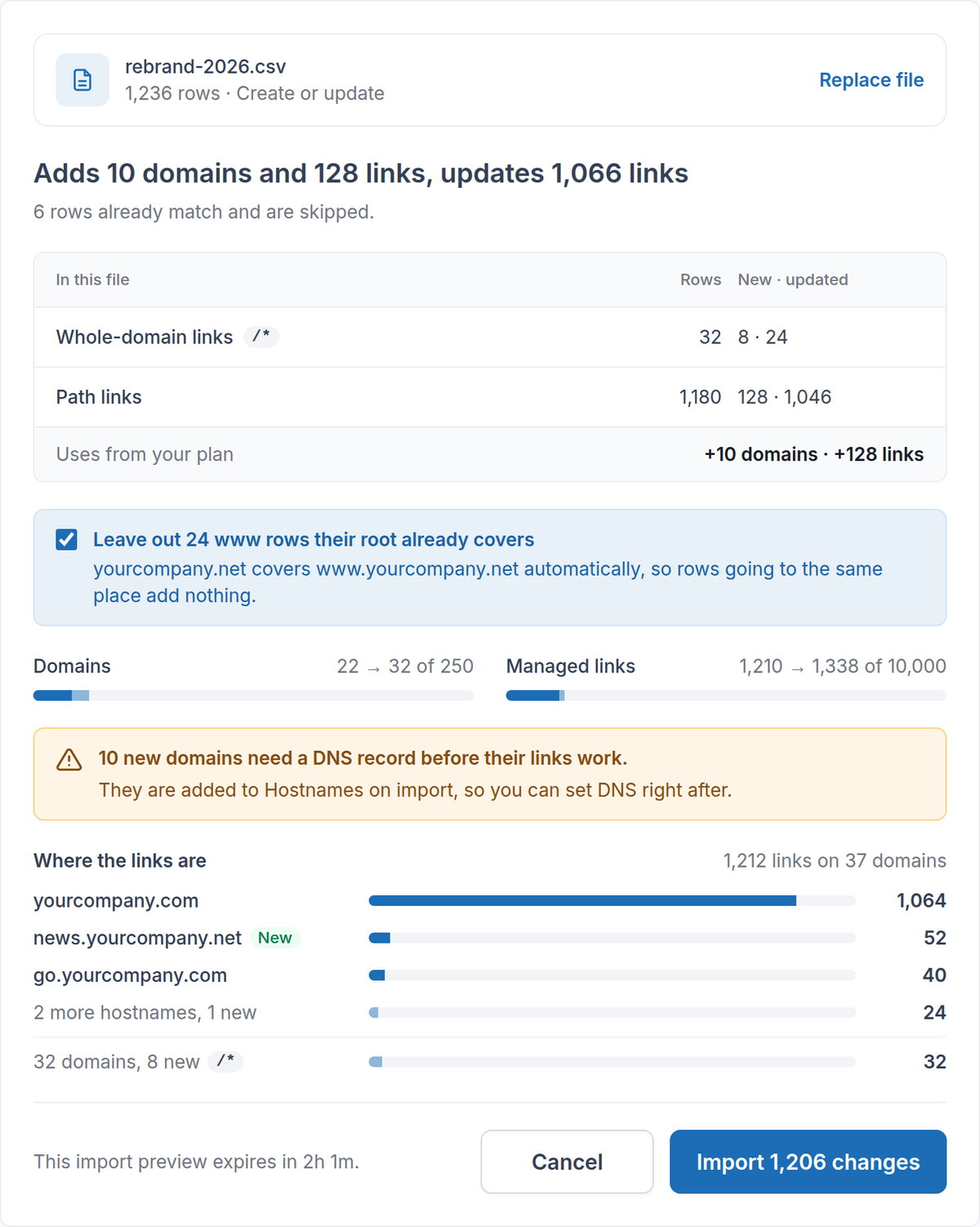
The import review shows every change and what it uses from your plan.
Click Import … changes to confirm. Nothing is saved until you do, and the preview expires after a while.
Step 3: Fix rows with errors#
If some rows can’t be imported, they are grouped by reason, with row numbers that match your spreadsheet. A missing https:// or an unsupported redirect type can be fixed in one click, for example Add https:// to all 9 or Change all to 301. You can also Download the rows with a note on each, then Upload fixed file, or skip them and continue.
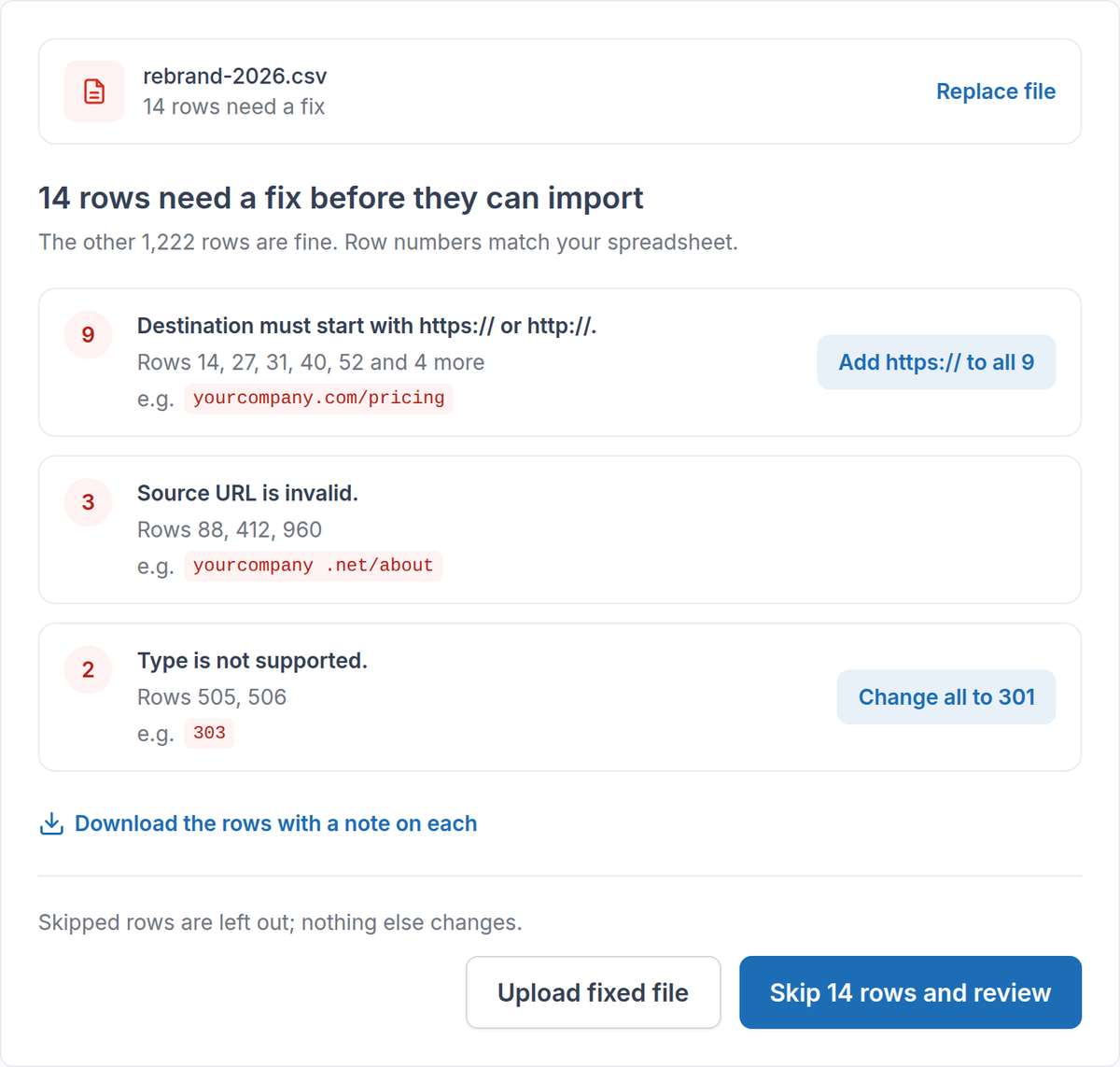
Row errors are grouped by reason, with one-click fixes.
Step 4: Point DNS for new domains#
When the import finishes you see what was added, updated and left unchanged. Links on new domains are saved and start working once their DNS points to RedirHub; click Set up DNS to do that next. HTTPS is issued automatically.
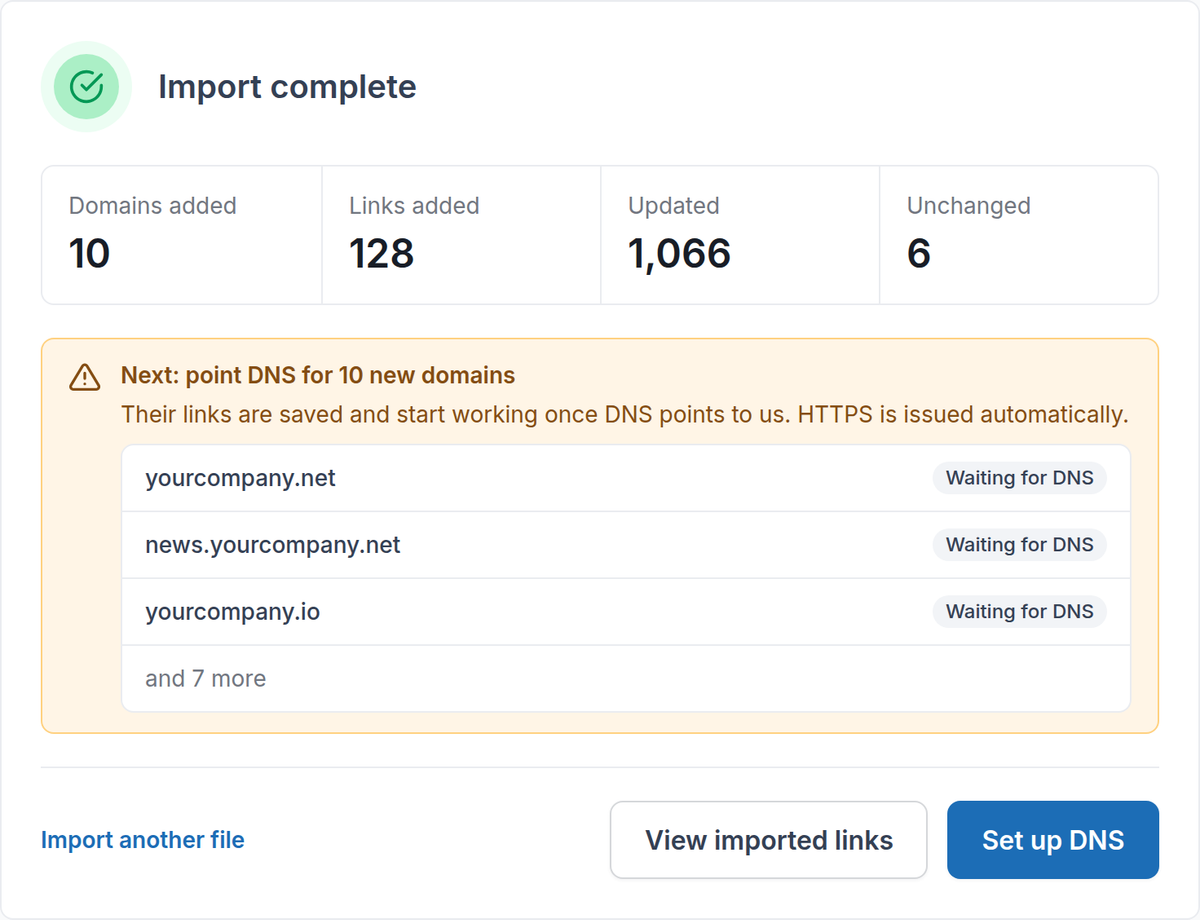
After the import, point DNS for the new domains.
Remove links in bulk#
Upload a CSV of the source URLs you want to remove with Remove selected. The review shows how many links will be removed and where they are. Sources that aren’t in your workspace are skipped and reported, and a warning shows how many of the links had visits in the last 4 weeks. Click Remove … links to confirm.
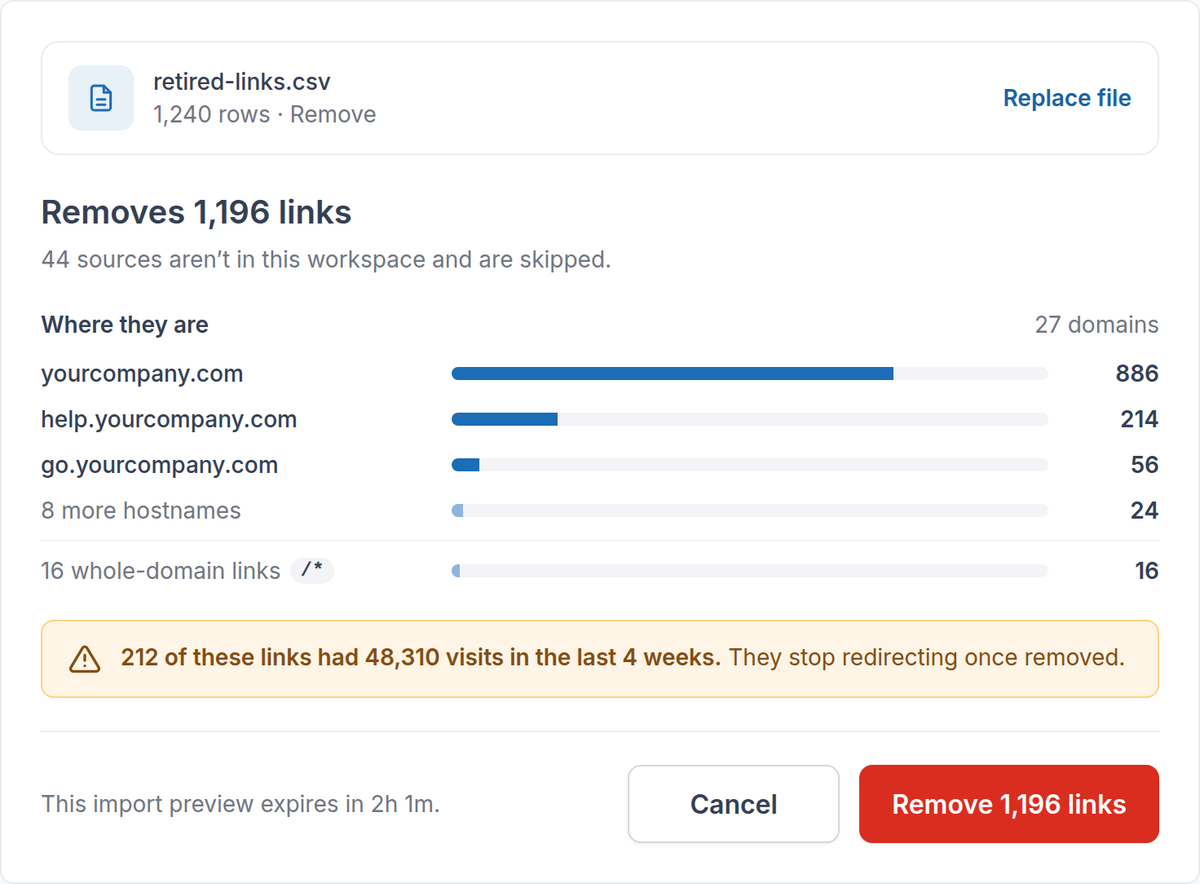
The remove review warns you about links that still get visits.
Good to know#
- A whole-domain link uses 1 domain and no managed links. A path link uses 1 managed link, plus 1 domain if it is on a new domain.
- An import that goes over your plan is blocked. The review offers to import only the rows on domains your workspace already has.
- Core includes 25 domains and 2,500 managed links; Pro includes 250 domains and 10,000 managed links. Enterprise limits are set by contract.
- A root domain also covers its www version. If the root and www need different destinations, add both: together they use 2 domains.
Frequently asked questions
No. A root domain covers its www version, so www rows that go to the same place are left out by default. Add a www row only when it needs a different destination; it then counts as one more domain.
No. A whole-domain link uses 1 domain and no managed links. Path links use 1 managed link each.
The import is blocked. The review offers to import only the rows on domains your workspace already has.
Only when you confirm the review. Until then nothing is written, and the preview expires after a while.