URL Redirect IIS: How to Set Up Rules and Test Them

Key takeaways
Pick the status code before you open IIS Manager: the URL Rewrite Module offers 301, 302, 303 and 307, while a permanent move that must keep POST requests needs IIS's separate HTTP Redirect feature and its 308. Write narrow patterns, match query strings in a {QUERY_STRING} condition rather than the pattern, check Stop processing and keep specific rules above broad ones. Stage on 302, test every variant with curl from outside the server until each old URL takes one hop to a 200, and never let user input reach the Location header.
You have a site migration scheduled for Friday night on a Windows Server running IIS, a spreadsheet of legacy paths from marketing, and one complication: half the URLs changed structure while the rest still carry campaign parameters and form posts. A bad URL redirect in IIS does more than break bookmarks. A 2025 Ahrefs analysis reported by GreenGeeks[1] found that roughly 60% of website migrations resulted in measurable organic traffic loss.
That risk usually comes from treating redirects as a last-minute web.config edit rather than a verified release. The safer sequence is deliberate: pick the status code from the move's intent, build the narrowest rule that fits, prove a single hop from outside the server, then inspect the destination as a security boundary before production traffic touches it.
A clean IIS cutover feels boring. That is the goal.
Choose the Redirect Status Code First#
Pick your HTTP status code before you open IIS Manager, because the code dictates which IIS feature you'll even use. Use a 301 redirect when the move is permanent, and a 302 redirect while the move is temporary or during testing. 307 and 308 redirects work like 302 and 301 but keep the request method, which matters for forms and APIs where dropping a POST body breaks checkout flows or webhooks.
If you're still weighing temporary versus permanent caching behavior during a staged rollout, our breakdown of 301 versus 302 redirects walks through how crawlers and browsers treat each response. Inside IIS, though, there's a platform quirk that catches administrators moving from Nginx or Apache: 308 Permanent Redirect isn't available in the URL Rewrite Module.
| Status code | Meaning | Keeps POST as POST | URL Rewrite Module | IIS HTTP Redirect feature |
|---|---|---|---|---|
| 301 | Moved Permanently | No | Yes | Yes |
| 302 | Found (temporary) | No | Yes | Yes |
| 303 | See Other | No | Yes | No |
| 307 | Temporary Redirect | Yes | Yes | Yes |
| 308 | Permanent Redirect | Yes | No | Yes |
In the URL Rewrite Module, the Redirect type dropdown gives you four labels: Permanent (301), Found (302), See Other (303), and Temporary (307). Whenever a permanent move must preserve POST requests as POST, you have to use IIS's separate HTTP Redirect feature rather than URL Rewrite.
Checking Your IIS Version Before Picking a Tool#
Configuration capabilities depend on which Windows Server generation you're maintaining. Microsoft's IIS lifecycle record[2] places IIS 6.0 on Windows Server 2003 back on May 28, 2003, while the modern rule-based model starts with IIS 7.0 on Windows Server 2008 (May 6, 2008) and continues through IIS 7.5 (October 22, 2009), IIS 8.0 (October 30, 2012), IIS 8.5 (November 25, 2013), and IIS 10.0 on Windows Server 2016 (October 15, 2016) and Windows Server 2019 (November 13, 2018). Because URL Rewrite Module 2.0 applies to IIS 7 and later, inventory every legacy host first so an overlooked IIS 6.0 server doesn't derail your rollout.
Patterns, Backreferences and Query Strings#
Before writing regular expressions, separate two actions that look similar in IIS Manager. According to the Microsoft URL Rewrite Module configuration reference[3], an internal rewrite changes the requested path on the server while keeping the browser's visible address bar untouched, whereas a redirect sends a 3xx status code (301, 302, 303, or 307) that instructs the client to request a brand-new URL. For site migrations and canonical URL enforcement, you want a redirect so visitors and search crawlers update their records.

A single well-scoped pattern replaces dozens of static URL entries by capturing moving path segments into backreferences. Suppose your old blog used /blog/iis-migration/42 and the redesigned site uses /article/42/iis-migration. A pattern like ^blog/([_0-9a-z-]+)/([0-9]+) captures the slug in the first set of parentheses as {R:1} and the numeric ID in the second set as {R:2}. Setting the redirect destination to article/{R:2}/{R:1} reorders both parts automatically for every matching post.
Handling Query Strings and Canonical Targets#
One detail trips up almost every first-time IIS administrator: the rule's main regex pattern only inspects the URL path, never the query string. If you try to match utm_source=newsletter inside the primary Pattern box, the rule will fail on every request. To branch on campaign tags or IDs, add a rule condition that evaluates the {QUERY_STRING} server variable against a pattern like (^|&)utm_source=newsletter(&|$).
For everyday forwarding, IIS sets appendQueryString="true" by default, meaning incoming query parameters tag along to the new destination automatically. That default helps paid search and email attribution, as detailed in our guide on preserving UTM parameters through redirects. Turn appendQueryString off only when a clean landing page must strip legacy query parameters so tracking junk doesn't pollute analytics or cause cache misses.
- Trailing slashes matter: A strict pattern without an optional
/?$at the end will catch/pricingwhile letting/pricing/fall through to a 404. - Letter case splits canonicals: IIS matches patterns case-insensitively by default unless you set
ignoreCase="false", so explicitly decide whether mixed-case requests should normalize to lowercase. - Encoded characters need live tests: Spaces (
%20), ampersands, and non-ASCII characters get decoded at different stages of the IIS pipeline, so never guess how a pattern handles them without sending a real HTTP request. - Point straight to the canonical target: Send old HTTP or non-
wwwpaths directly to the final HTTPS canonical URL in one rule so you don't force browsers through two sequential redirects.
How to Create a Redirect Rule in IIS Manager#
When a migration calls for path mapping, conditional logic, or query control, build the rule in the URL Rewrite Module rather than relying on a site-wide redirect. Microsoft's guide to creating rewrite rules[4] outlines the exact inbound rule workflow inside IIS Manager, and following it step by step keeps web.config clean and readable.
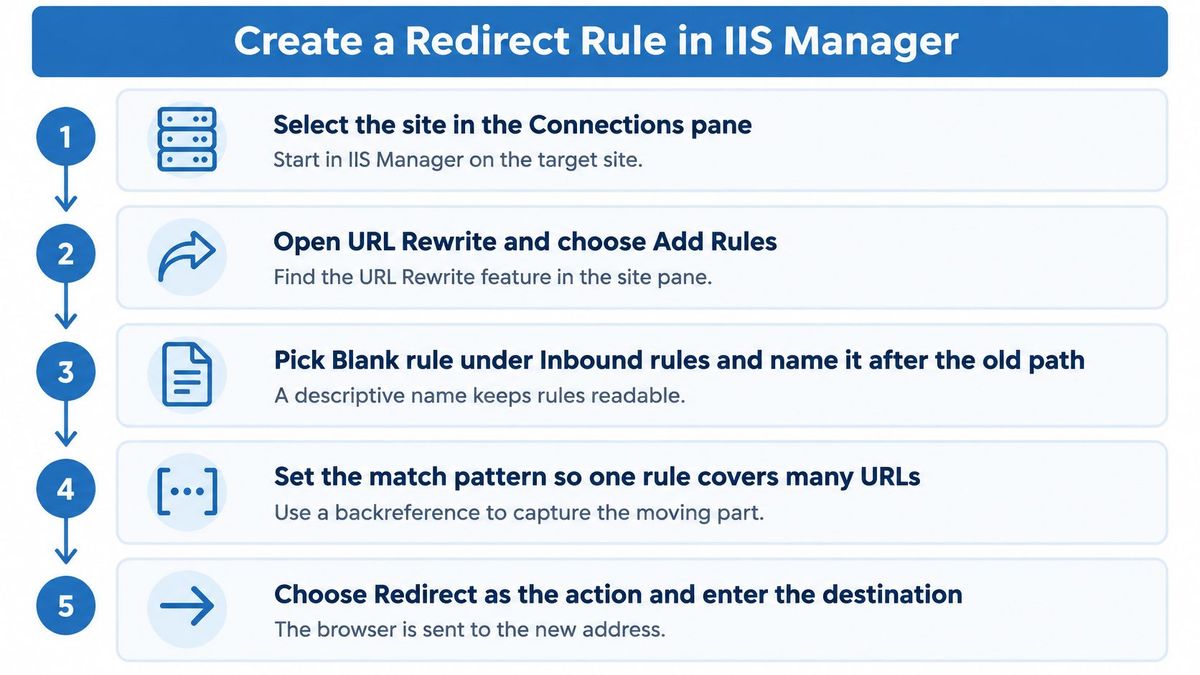
- Select the target site in the Connections pane, open URL Rewrite, and click Add Rules. Working at the site node scopes the rule to that application's
web.configfile instead of the server root. The common slip is configuring a rule at the top server node by accident, which propagates your redirect across every hosted site on the machine. - Choose Blank rule under Inbound rules and give it a descriptive name like
legacy-pricing. Clear names let anyone troubleshooting an incident spot which rule fired without decoding regex strings under pressure. Leaving default names likeInboundRule1turns a 20-rule migration file into guesswork within a month. - Enter a narrow regular expression in the Pattern box that matches only the moving section. Tight anchors such as
^pricing/old-plans/?$ensure unrelated paths keep serving normally. A broad wildcard like.*without strict exclusions will swallow CSS files, health checks, and pages you meant to keep live. - Add Conditions only when the redirect depends on host, scheme, or a server variable. For an HTTP-to-HTTPS redirect, add a condition checking
{HTTPS}against^OFF$so already-secure traffic skips the rule. Forgetting that condition is the fastest way to trigger an infinite self-redirect loop. - Under Action, select Redirect, enter the canonical destination URL, and pick the Redirect type. Use Found (302) while testing on staging, then change to Permanent (301) after validation. If a permanent move must preserve
POSTbodies with a308, stop here and use the HTTP Redirect feature instead. - Keep Append query string checked unless parameters must be dropped, and check Stop processing of subsequent rules. Checking
Stop processingwritesstopProcessing="true", preventing later rules in the list from rewriting or overriding your redirect. Skipping it often causes a broad fallback rule at the bottom ofweb.configto hijack your target. - Click Apply in the Actions pane, then inspect
web.configdirectly. IIS Manager writes the XML under<system.webServer><rewrite><rules>, and a quick visual scan catches typos in backreferences or missingnegate="true"flags before you test externally.
Reviewing the Rule in web.config#
Don't assume the GUI saved what you meant. Open the site's web.config in a text editor and verify that your new <rule> element sits above any catch-all routing or SPA fallback rules, carries stopProcessing="true", and uses the exact redirectType you intended.
Once the XML looks right, hit the old path from a terminal outside the server and confirm the response returns your expected 3xx status and Location header.
Configure a Permanent 308 Redirect with HTTP Redirect#
Reach for IIS's built-in HTTP Redirect feature when an entire site or directory moves permanently and incoming POST requests (such as form handlers or legacy API endpoints) must stay POST. As documented in the IIS HTTP Redirect configuration reference[5], this module supports 301, 302, 307, and 308 status codes directly, and its 307 and 308 responses instruct clients to resend POST payloads rather than converting them to GET.
- Install the HTTP Redirect role service if the icon is missing. Open Server Manager, go to Web Server (IIS) under Common HTTP Features, install HTTP Redirect, and reopen IIS Manager so the feature tile appears. Administrators often waste time hunting through URL Rewrite menus when the role service isn't installed yet.
- Select the exact site or subfolder holding the retired content, open HTTP Redirect, and tick "Redirect requests to this destination". Scoping to the folder limits the blast radius of the change. The classic mistake is enabling HTTP Redirect on the site root when only
/legacy-api/moved, which immediately redirects your homepage and static assets to the new folder. - Enter the full destination URL, such as
https://example.com/api/, and pick Permanent (308) from the Status code dropdown. Using a full HTTPS target avoids extra scheme hops. Before rolling out308broadly, verify that any older API clients or reverse proxies sitting in front of IIS handle308cleanly. - Configure the two Redirect Behavior checkboxes carefully. Tick Only redirect requests to content in this directory (not subdirectories) if nested folders should remain on the old server; tick Redirect all requests to exact destination (instead of relative to destination) when every old path should land on one single target URL without appending the original filename. Leaving the second box unticked when you meant to consolidate paths will produce broken deep links on the destination host.
- Click Apply in the Actions pane to write the
<httpRedirect>element. Remember that server-level IIS configuration can supersede site-level rules, so check parent nodes if staging and production behave differently.
Scope Limits and Pass Conditions#
Because HTTP Redirect operates across a whole site or folder without regex path rewriting, keep it strictly for broad directory moves and 308 requirements, while managing granular path-to-path mappings inside URL Rewrite.
Your pass condition is straightforward: run curl -I against an old URL in that directory from a machine outside the server and confirm the status line reports 308 with the Location header pointing straight to your target URL.
Test Every Redirect with curl and Fix Failures#
Never flip DNS until you've verified both the redirect response and the final landing page. That second half matters more than many expect: a 2025 academic study by Garg, Alam, Ayala, Weigle, and Nelson[6] analyzed 11 million unique redirecting URIs and found that only 50% ended successfully when followed to the end. The other half ended in errors, which is what happens when nobody tests past the first 3xx header.
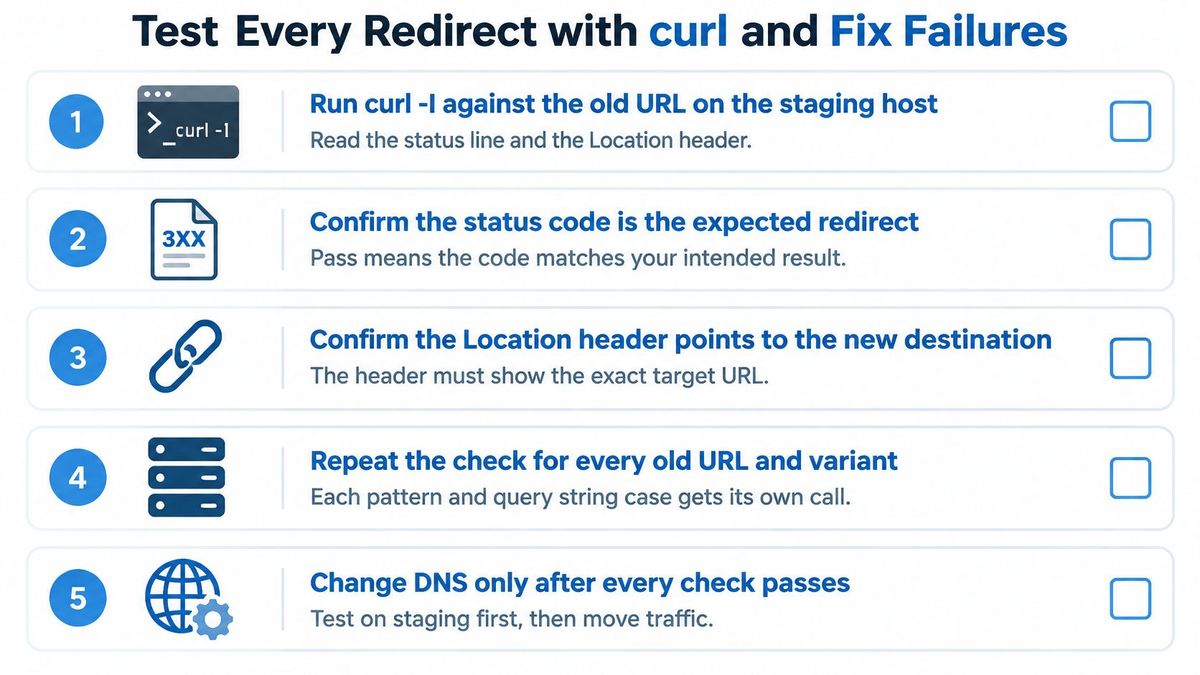
Build your test list from three sources before you start: your top analytics landing pages, every row in your migration map, and at least one representative URL for every regex rule in web.config. For large migration spreadsheets where manual terminal checks aren't realistic, a bulk redirect checker lets you verify hundreds of URLs in one pass before cutover. Run the core sequence in one sitting against staging:
- Inspect the first response: Run
curl -I https://example.com/pricing/old-plansand read the status line andLocationheader. Pass condition: the status code matches your planned staging code (302or308) andLocationpoints to the exact target URL. - Test every edge-case variant: Repeat the call against
https://example.com/pricing/old-plans/with the trailing slash added, then against the www variantcurl -I https://www.example.com/pricing/old-plans(plus thehttp://scheme if your rules handle it). Include a percent-encoded character like%20and append a test query string such as?utm_source=test. Pass condition: every variant resolves to the right target, and query parameters land once with no duplicates. - Verify from outside the server: Run the same
curl -Icommands from a workstation or external test host rather than a local browser. Pass condition: external headers match staging expectations with no cached browser responses masking an outdated rule. - Follow the chain to completion: Run
curl -ILon each URL to trace every hop until the final response. Pass condition: exactly one 3xx hop ending in a200 OKon the canonical destination.
How long the redirect itself takes#
Every old URL now costs visitors one extra round trip before the new page starts loading, and how long it takes depends on where the redirect is answered. Our redirect speed benchmark times public redirects from Washington, D.C., Frankfurt and Tokyo every hour, over a fresh connection and without following the redirect (RedirHub redirect speed benchmark[7]). Median time to first byte, 17–24 November 2026, for the web servers and networks it measured, with the number of URLs behind each figure:
| Answered by | URLs measured | Median time to first byte (mean of 3 locations) |
|---|---|---|
| Microsoft Azure | 1 | 15 ms |
| RedirHub | 2 | 17 ms |
| Cloudflare | 7 | 157 ms |
| nginx | 1 | 193 ms |
| Apache | 2 | 360 ms |
The benchmark has no IIS server in its sample, and the nginx and Apache figures come from one or two public sites each, so read them as examples rather than a verdict on the software. The pattern is what matters for your cutover: a redirect answered by a single origin server is as far away as that server is from each visitor, while one answered on an edge network is close to them. Before launch, time a few old URLs from more than one region with curl -sS -o /dev/null -w '%{http_code} %{redirect_url} %{time_starttransfer}' and compare them with the new pages.
Diagnosing Failed Redirects in IIS#
When a test fails, match the header output against the symptoms below instead of editing rules blindly.
| Symptom | Likely cause | Fix |
|---|---|---|
| Browser reports too many redirects | Rule matches its own destination, such as HTTP-to-HTTPS without checking the scheme | Add a condition on the current scheme and exclude the destination host |
| Campaign parameters disappear | appendQueryString is turned off, or the destination drops them | Enable Append query string, or pass the parameters in the rule action |
| Query-based rule never matches | Regex sees only the path, not the query string | Match the QUERY_STRING server variable in a rule condition |
| Old URL returns 404 after the rule is added | Pattern misses trailing slashes, encoded characters or letter case | Test representative paths with curl -I and widen the pattern carefully |
| Browser still uses the old target | A 301 was cached by the browser | Test with curl or a clean client, and clear the cache before judging the fix |
| Two hops before the final page | Old URL points to an intermediate URL that also redirects | Point the rule straight at the final canonical URL |
Treat these fixes differently when re-testing. Enabling appendQueryString, swapping an intermediate URL for the final canonical destination, or confirming a stale browser cache with curl are quick targeted edits where re-checking the affected URLs is enough. Widening a regex pattern, adding scheme or host loop conditions, or moving logic into QUERY_STRING conditions requires a full re-run of your entire checklist, because a small syntax change in one rule can accidentally capture neighboring paths or break downstream rules.
Lock Down Redirects and Confirm the Cutover#
A clean curl result confirms the rule fires, but it does not prove the rule is safe. Any IIS redirect that copies user-controlled input into the Location header can become an open redirect. That happens with a returnUrl query parameter, a wide regex backreference, or any convenience rule that accepts a destination supplied by the caller. A link that begins with your trusted domain and valid HTTPS certificate can make a phishing destination look credible to employees and customers.
The unsafe pattern is easy to spot in web.config. Suppose someone writes a rule matching ^go/(.*)$ and redirects directly to {R:1} so marketers can pass destinations dynamically. An attacker can craft https://example.com/go/https://evil-login.example/harvest and send visitors straight to a credential-harvesting site under your domain's reputation. The source URL looks familiar, the redirect happens server-side, and the victim never sees the unsafe target until the browser has already followed it.
Replace open patterns with explicit server-side mappings. Map short, fixed keys to hardcoded destinations, such as ^go/pricing/?$ redirecting strictly to https://example.com/pricing?utm_source=go, so zero user input ever touches the Location header. According to the OWASP Unvalidated Redirects and Forwards Cheat Sheet[8], when an external destination must come from user input, parse the URL with a standard parser and validate both the scheme and hostname against an exact allowlist rather than relying on substring or regex checks.
OWASP also highlights a browser-parsing trap that defeats naive string filters: malformed values such as encoded slashes, backslashes, or encoded whitespace can turn what looks like a local path into an external redirect once the browser normalizes it. Loose redirect matching creates another failure mode in OAuth sign-in flows, where identity providers require exact redirect-URI matching and even a small open-redirect bug can expose authorization data. Test rules with encoded payloads such as %2f%2f, /\, and leading whitespace using curl -I before treating a pattern as safe.
Location header, treat it with the same skepticism as a login form.Logging, Verification and Cutover Sign-Off#
Before pushing web.config or HTTP Redirect settings to production, wire up IIS logging and monitoring alerts for 3xx responses whose Location headers point to unexpected external hosts. This catches rogue rule changes or bypassed returnUrl parameters quickly, especially where several teams manage IIS sites from shared templates. Keep the alert tight enough to be useful: flag external destinations, repeated unusual paths, and changes that break the expected one-hop journey.
Run the full staging curl sequence alongside the encoded-input checks, then verify the complete redirect journey end to end. A practical pass covers the original host, www and non-www forms where both are in use, representative old paths, trailing slashes, preserved query parameters, and the final destination returned as a single hop. A free redirect checker shows the full chain of any URL, following every 301, 302, 307 or meta refresh until the final page answers, which gives you an external confirmation before launch. That matters because IIS can look correct from the server while clients still see a cached 301, an extra hop, or a dropped query string.
Cutover should be dull. Record written sign-off from engineering and SEO owners in a shared release document, switch staging 302 rules to 301, and use 308 where the method or client behavior requires it. Keep the final rule set aligned with the migration intent: a permanent move should point at the canonical destination, a temporary move should remain reversible, and a test should avoid making the new address canonical too early. After production changes, repeat the same curl checks against public URLs and confirm destinations, headers, and query strings. If the rule pattern or condition changes, rerun the entire checklist rather than testing only the edited line.
Take the redirect map off the server
Import your migration map from a CSV, review what will be added, updated or removed before anything is written, and manage every old URL in one dashboard instead of web.config.
Plan your migration redirectsSources
- [1]Website Migration SEO Checklist, GreenGeeks
- [2]Internet Information Services (IIS), Microsoft Lifecycle
- [3]URL Rewrite Module Configuration Reference, Microsoft Learn
- [4]Creating Rewrite Rules for the URL Rewrite Module, Microsoft Learn
- [5]HTTP Redirects <httpRedirect>, Microsoft Learn
- [6]Not Here, Go There: Analyzing Redirection Patterns on the Web (Garg, Alam, Ayala, Weigle and Nelson, 2025)
- [7]RedirHub redirect speed benchmark, 17–24 November 2026
- [8]Unvalidated Redirects and Forwards Cheat Sheet, OWASP Cheat Sheet Series
Frequently asked questions
Install the URL Rewrite Module, select the site in IIS Manager, open URL Rewrite and add a Blank inbound rule. Enter a narrow pattern for the old path, set the action to Redirect with the destination URL and redirect type, and check Stop processing of subsequent rules. Apply it, check the rule in web.config and test the old URL with curl -I from outside the server.
No. The URL Rewrite Module's redirect types are Permanent (301), Found (302), See Other (303) and Temporary (307). For a permanent redirect that keeps POST requests as POST, use IIS's HTTP Redirect feature, which offers 308 once its role service is installed.
Add a URL Rewrite rule with a condition that checks {HTTPS} against ^OFF$, so requests that are already secure skip it, and redirect to the final HTTPS canonical URL. Without that condition the rule matches its own destination and loops. Send old HTTP and non-www requests straight to the final address in one rule, so visitors take a single hop.
A rule's pattern only sees the URL path, never the query string. To match a parameter, add a condition on the {QUERY_STRING} server variable. Incoming query strings are appended to the destination by default, so turn Append query string off only when the parameters must be dropped.
Run curl -I against each old URL from outside the server and check the status code and Location header, then repeat with a trailing slash, the www and http variants, an encoded character and a test query string. Run curl -IL to follow the chain: each old URL should take exactly one 3xx hop to a 200. For a long migration map, check the URLs in bulk.

Leo Astarothman is the Brand & Content Lead at RedirHub, where he shapes the company's visual identity, educational content, product experiences, and marketing strategies. He also specializes in system design. Simplifying complex redirect infrastructure into practical resources, product experiences, and campaigns that help businesses understand and adopt modern redirect management.
Related Articles
View All Articles