
Direct Answer
Open Analytics, set the period and what to compare it with, filter to the traffic you want to explain (a country, link, tag or domain), then read Sources. The × badge next to each channel shows how its share in your filter compares with its usual share of all traffic, so the standout channel is the one with the highest multiplier and a rising change.
A total like “clicks up 12%” tells you something happened, not why. This guide walks through one question from start to finish: clicks from Germany grew 12% in the last 30 days, so which channel caused it? The same steps work for any link, tag or domain. Analytics is included on Core (90 days of history) and Pro (6 months); the Free plan does not include it.
Step 1: Choose the period and what to compare it with#
Open Analytics and click the date range. Pick a preset such as Last 30 days, then set Compare to: Previous period, Same period last year, or Off.
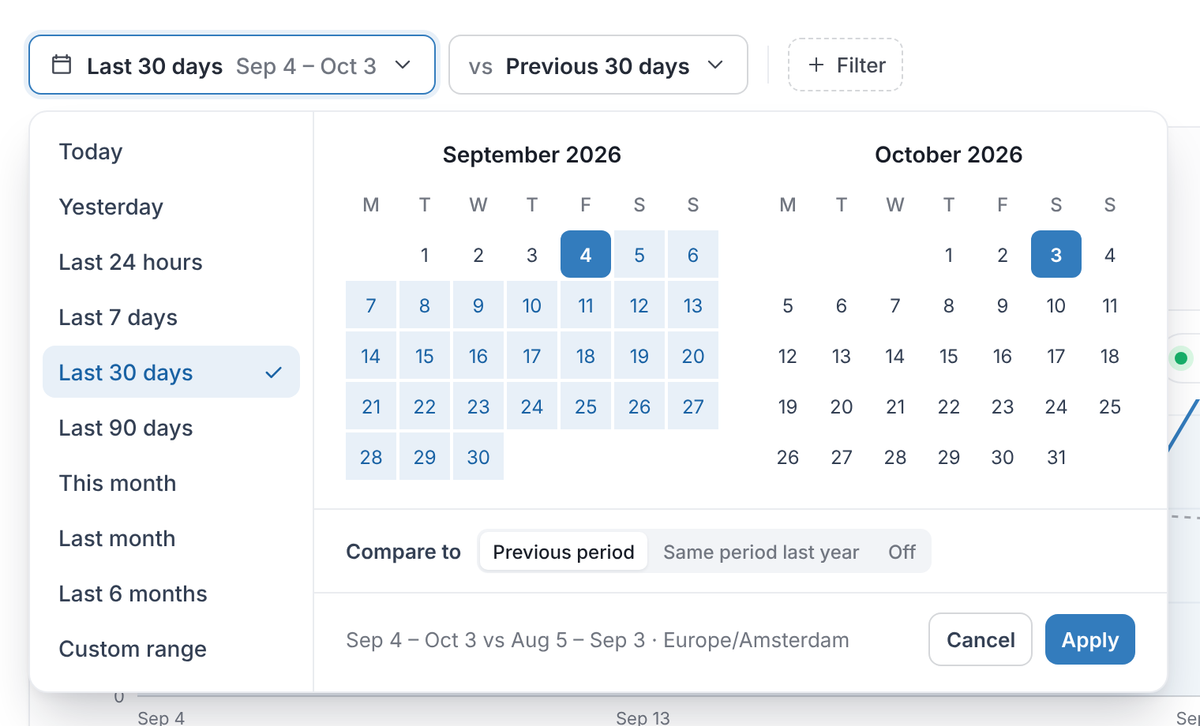
Last 30 days compared with the previous 30 days.
Read the line at the bottom before you apply: it names both date ranges and the time zone (here Sep 4 – Oct 3 vs Aug 5 – Sep 3, Europe/Amsterdam), so every “Change” on the page means “this 30 days against the 30 days before”. In this example the whole workspace got 262K clicks, up 3.8%, while Germany grew 12%. That gap is the question.
Step 2: Filter to the traffic you want to explain#
Click Filter, choose a field (Link, Domain, Tag, Country, City, Channel, Referrer, Device, Browser, QR code or Response), tick the values and click Apply filter. Switch between is and is not to include or exclude them. You can also click any row on the page, such as Germany in Locations, to filter to it.
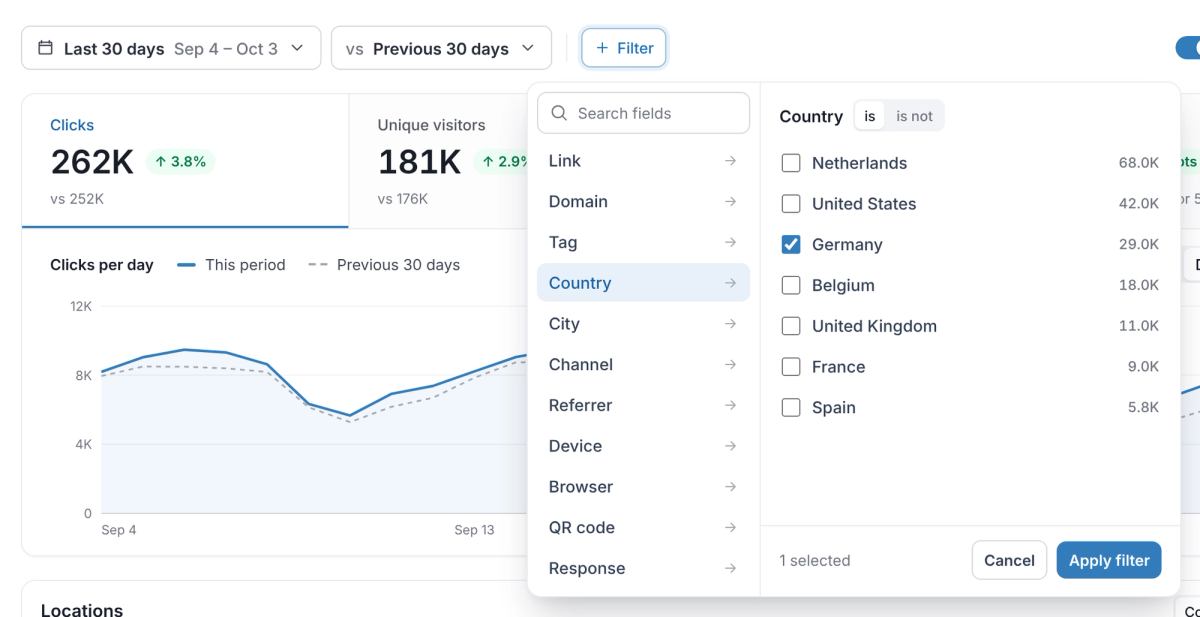
Filter → Country → Germany. Each value shows its clicks, so you can see its size before you apply.
Step 3: Read what changed for that traffic#
The filter now shows as a chip, Country is Germany, and every number and chart on the page follows it. Remove the chip with × to go back to all traffic.
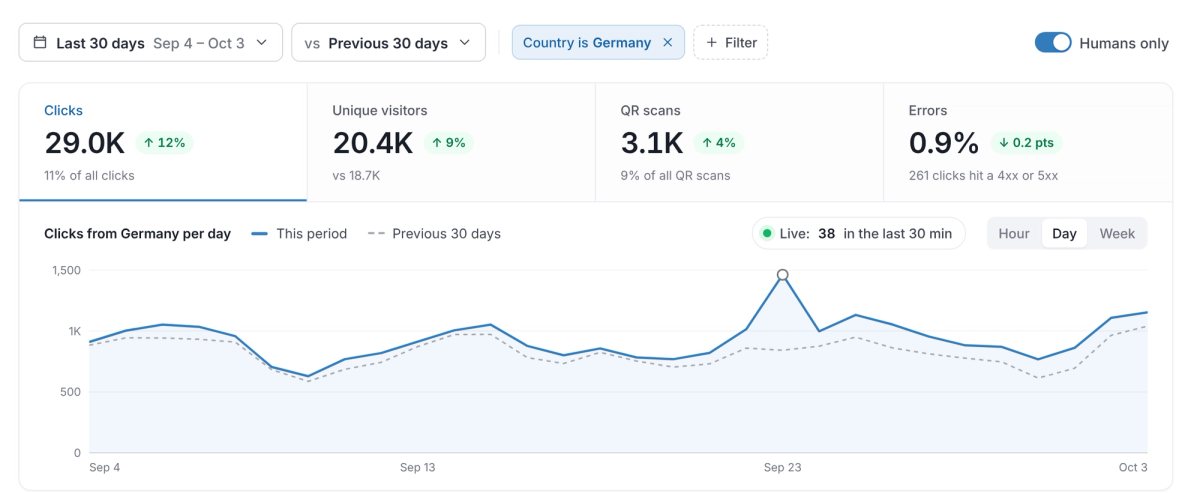
With the filter on, Germany is 29.0K clicks (11% of all), up 12%.
What this tells you: Germany is 11% of all clicks (29.0K), up 12%, and unique visitors are up 9%, so most of the growth comes from more people, not the same visitors clicking more. The daily line sits above the previous 30 days almost all month, with a peak around September 23, which points to an ongoing source rather than a one-off spike. The Locations card switches to the cities in Germany, where Berlin leads with 7.4K clicks, up 15%.
Step 4: Find the standout channel in Sources#
Scroll to Sources and Top links. With a filter on, each row gets a × badge: how its share of the filtered traffic compares with its usual share of all traffic. 1.0× means no difference; green above 1 means over-represented; red below 1 means under-represented.
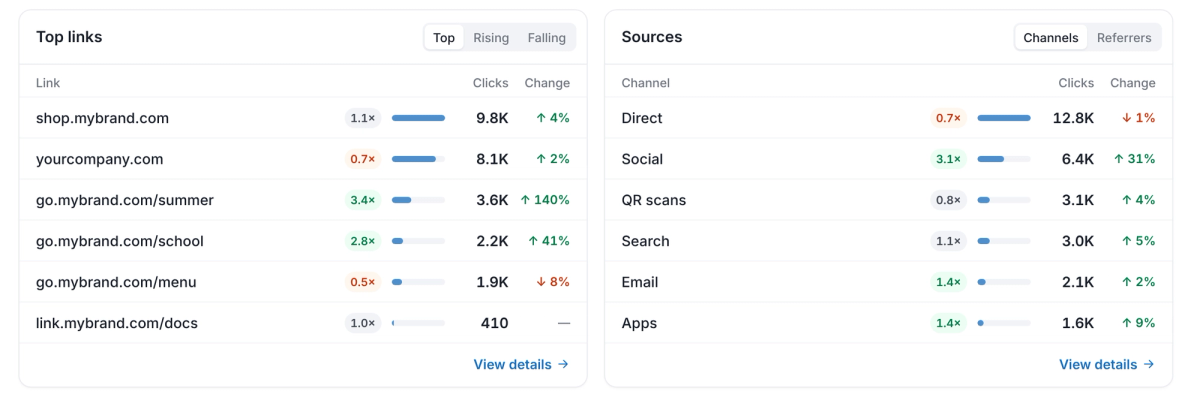
Social is 3.1× its usual share and up 31%; go.mybrand.com/summer is 3.4× and up 140%.
Direct is still the biggest channel (12.8K), but it is 0.7× and down 1%, so it did not cause the growth. Social is the standout: 6.4K clicks, up 31%, at 3.1× its usual share (about 22% of Germany’s clicks against about 7% across all traffic). Top links shows where those clicks land: go.mybrand.com/summer is 3.4× and up 140%. Further down, the summer-campaign tag (3.1×) and the Instagram in-app browser (2.7×, up 48%) point the same way. The answer: Germany grew because the summer campaign link is being shared on social, mostly Instagram.
Step 5: Confirm the referrer and export it#
To see the exact sites behind a channel, click View details on Sources and switch to Referrers. The panel uses the same filters as the page (its first line says which), lists every referrer with its channel, clicks, share and change, and has a CSV button. Click a row to filter the page to that referrer.
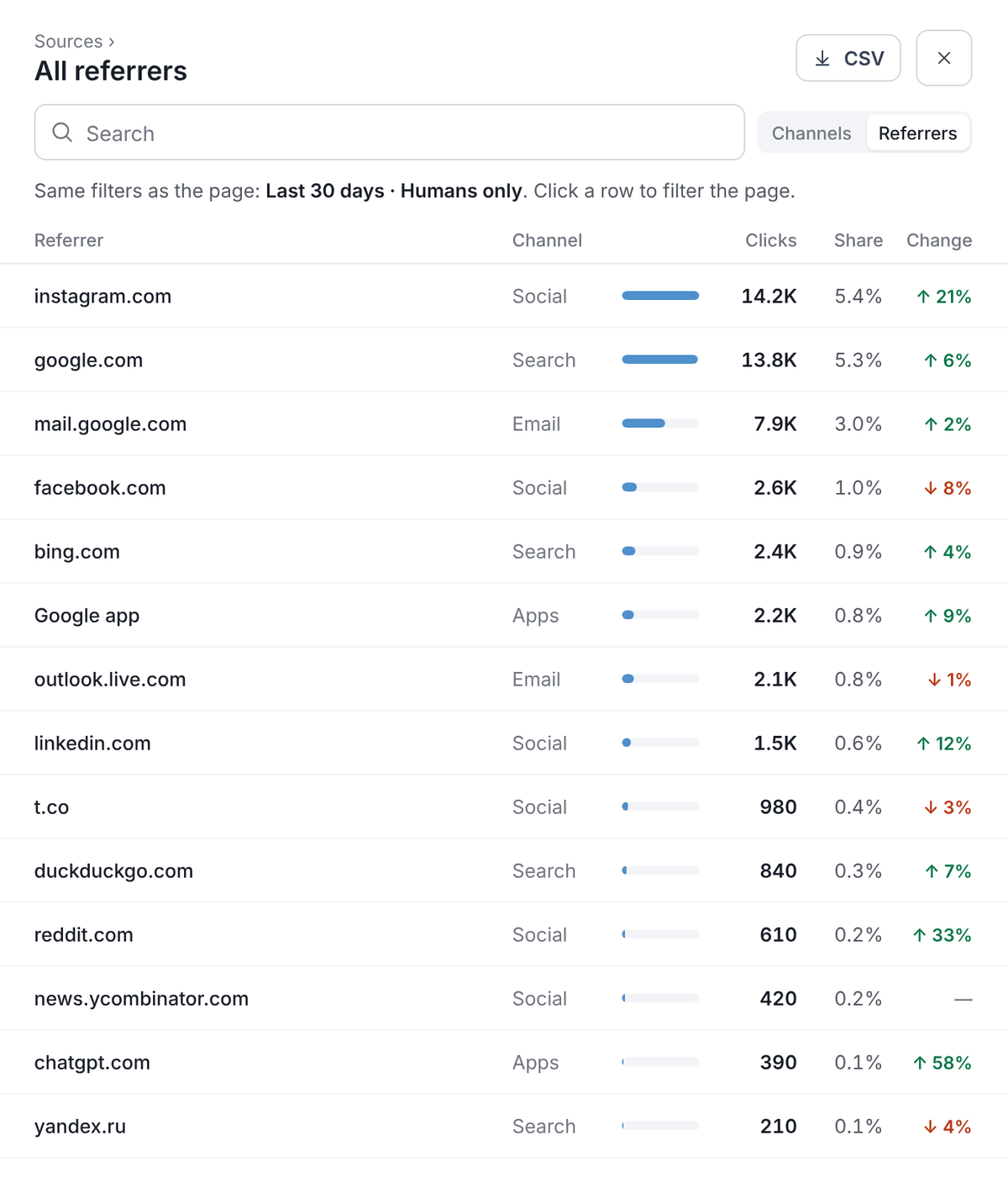
View details → Referrers: instagram.com is the top referrer, up 21%.
Across all traffic in this example, instagram.com is the top referrer (14.2K clicks, 5.4% of the total, up 21%), ahead of google.com (13.8K, up 6%), while facebook.com fell 8%. That confirms the finding from Step 4 and gives you a list you can export for a report or hand to whoever runs the social posts.
Good to know#
- Humans only leaves bots out of every number on the page. Turn it off to include them, for example when you check whether a crawler reached a migrated URL.
- The daily trend covers your whole history (90 days on Core, 6 months on Pro). City-level detail covers the most recent days, and the card says which dates it covers.
- Tags make this kind of question faster: tag every link of a campaign once, then filter by Tag instead of picking links one by one.
- For one link’s clicks or scans over time, open the link instead: see Read a link’s traffic and scan history.
The numbers in these screenshots are sample data. To try the same steps on real traffic without signing up, open the read-only demo dashboard.
Frequently asked questions
It compares the channel's share of the filtered traffic with its usual share of all traffic. 3.1× means the channel makes up about three times as large a part of the filtered clicks as it normally does. Badges only appear when a filter is on.
Yes. Add another filter with Filter; the page then shows traffic that matches all of them, and each one appears as its own chip you can remove.
Core and Pro. Core keeps 90 days of history and Pro keeps 6 months. The Free plan does not include Analytics.