Vanity Domain Setup: A Step-by-Step Guide for Teams

Key takeaways
A vanity domain is your own hostname, usually a subdomain like links.yourbrand.com, mapped by a DNS CNAME record to the platform that serves your links. Use a subdomain, not your root domain. CNAME records generally cannot sit at the root. Add the domain in your platform first, confirm both ownership and SSL show as active, and only then switch the DNS record. HSTS is not a DNS setting. It is an HTTP header set on the server. Keep the domain registered and your DNS hosting healthy. If either lapses, every link you have printed or published stops working.
Setting up a vanity domain means choosing a branded hostname such as go.yourbrand.com, pointing it at a platform with a DNS record, and waiting until the platform has issued an SSL certificate for it. Do those three things in the right order and your links run on your own domain with no downtime. Do them in the wrong order and visitors see browser security warnings.
This guide walks through the whole process, from choosing the name to testing, and covers the mistakes that quietly break links months later.
What a vanity domain is, and what it is not#
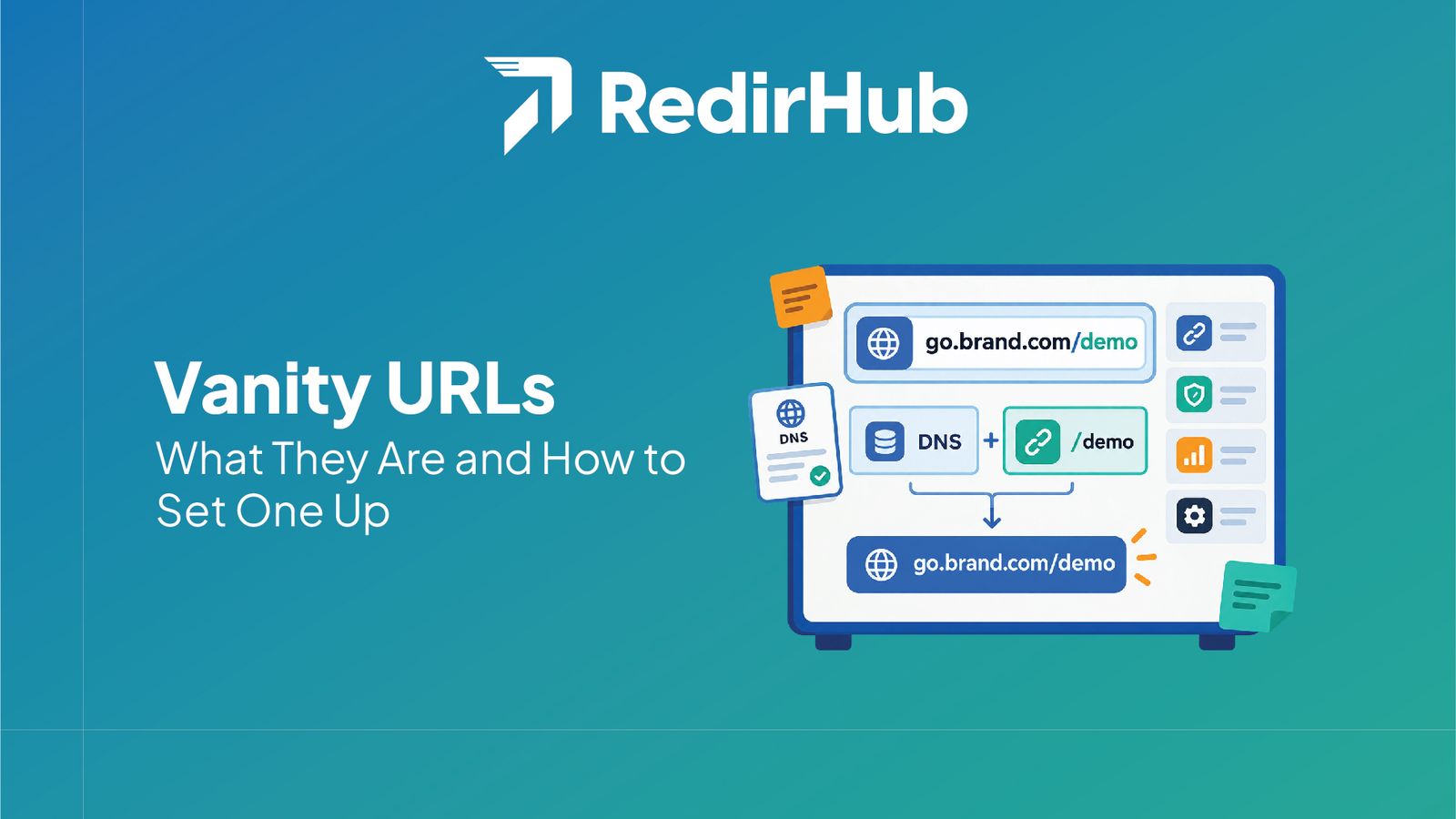
A vanity domain is a domain name that expresses your brand instead of the name of the tool behind it. Your link goes from a generic shortener address to something like go.yourbrand.com/spring. The visitor sees your name, the platform does the routing.
It is easy to confuse three things:
- A vanity domain is the hostname you control (go.yourbrand.com).
- A vanity URL is a full address on that hostname (go.yourbrand.com/spring). If you want the broader concept first, we cover it in our guide to vanity URLs.
- A redirect is the rule that sends a visitor from the vanity URL to the real destination.
The setup below covers the first item. The other two are built on top of it.
Before you start: what you need#
Gather these before you open any dashboard. Most failed setups come from a missing item on this list, not from a technical fault.
- Access to your DNS settings. This is usually at your registrar or a separate DNS host. If a colleague or an agency set up the domain years ago, find out who holds the login now.
- A decision on the hostname. Short, pronounceable, brand-relevant, and easy to read aloud.
- An account on the platform that will serve the links, with permission to add domains.
- A list of who else uses the domain. If marketing, support and IT each have records on it, agree on changes first.
Step 1: Choose the hostname#
Pick a subdomain of a domain you already own. Common patterns:
| Pattern | Example | Best for |
|---|---|---|
| Short action word | go.yourbrand.com | General campaigns |
| Purpose label | links.yourbrand.com | Link hubs, bio pages |
| Channel label | qr.yourbrand.com | Printed materials and packaging |
| Region or brand label | us.yourbrand.com | Multi-brand or multi-market teams |
A few rules of thumb:
- Keep it short. Every extra character is one more chance for someone to mistype it from a flyer.
- Avoid hyphens and ambiguous letters if people will type it by hand.
- Use a subdomain, not a separate lookalike domain, unless you have a clear reason. A subdomain inherits the trust of your main brand domain.
- Some platforms need a minimum number of parts. One embed tool’s documentation, for instance, states that a vanity domain must have three or more parts, which rules out a bare root domain.
If you manage several brands, plan a naming convention now. It is far cheaper than renaming hostnames after thousands of links are in circulation.
Step 2: Add the domain in your platform first#
This is the step many guides skip, and it is the one that prevents downtime.
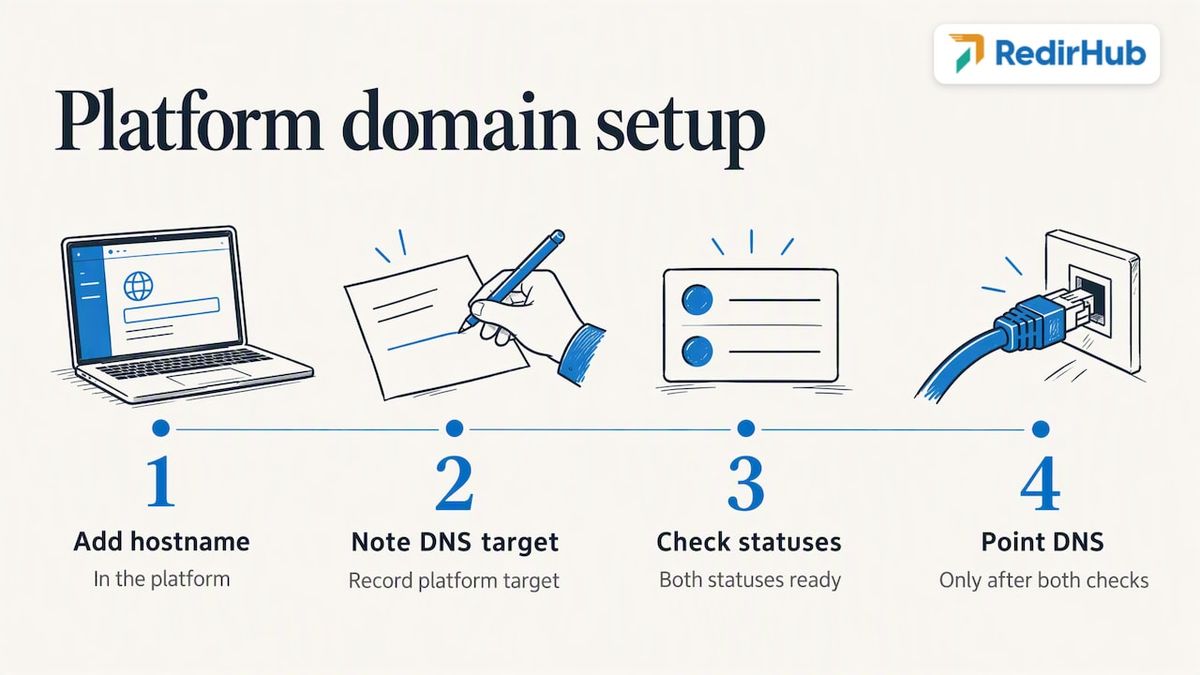
A working vanity domain involves two separate checks on the platform side: proving you own the hostname, and issuing an SSL/TLS certificate for it. Cloudflare’s documentation for platforms describes hostname validation and certificate issuance as separate statuses[1] that you should watch. The practical rule: add the hostname in the platform, note the DNS target it gives you, and do not rush to point live traffic until both statuses are ready.
If you point DNS at the platform before a certificate exists, visitors can hit a certificate error in the gap. For a brand new hostname nobody is using yet, that gap costs nothing. For a hostname already printed on materials, it is a real outage.
Step 3: Create the DNS record#
Log in to your DNS host and add a new record for the subdomain.
- Choose record type CNAME.
- In the name or host field, enter only the subdomain part (go, not go.yourbrand.com). Some DNS hosts append your domain automatically, and entering the full name creates a broken record like go.yourbrand.com.yourbrand.com.
- In the value or target field, paste the exact target the platform gave you.
- Leave the TTL at the default, or lower it (for example to a few minutes) before a live cutover so you can roll back quickly.
- Save.
A CNAME is an alias. It tells the internet that your hostname is another name for the platform’s hostname, so the platform handles routing and SSL termination[2] for you.
Why not the root domain?#
People often want yourbrand.com itself to serve links. A CNAME cannot normally live there, because it would override other records such as MX and NS[3], which would break email and DNS resolution. Use a subdomain for the platform, and if you need the bare domain to work, redirect it to the subdomain or to your main site.
Existing records on that name#
A hostname cannot have a CNAME and other record types at once. If go.yourbrand.com already has an A or TXT record from an older tool, remove or replace it deliberately. Check first that nothing live depends on it.
Step 4: Wait for validation and SSL#
After saving the record, the platform checks it. DNS changes can take anywhere from minutes to several hours to be visible everywhere, depending on TTL and your DNS host.
What to look for:
- Hostname status changes from pending to active.
- Certificate status changes from pending to issued or active.
- A test visit over HTTPS loads without a warning.
Modern platforms renew certificates automatically. That matters, because a certificate you manage by hand will expire. Cloudflare’s guidance on custom hostnames notes that automatic renewal at the edge is the way to avoid recurring SSL errors for customers’ domains. When you evaluate a platform, ask who owns certificate renewal. If the answer is you, put the expiry date in a shared calendar.
Step 5: Test before you announce#
Before a single link goes on a poster, run this checklist:
- [ ] The hostname loads over https:// with a valid certificate
- [ ] The http:// version redirects to https://
- [ ] A test short link resolves to the right destination
- [ ] The link works on mobile data, not only office Wi-Fi
- [ ] The link works in an incognito window, with no cached results
- [ ] A test QR code, if you use them, scans and lands correctly
- [ ] Click data appears in your analytics
Test from a different network than the one you configured on. A stale local DNS cache can make a broken setup look fine on your own machine.
What DNS cannot do: HSTS and security headers#
A common misconception is that you can switch on HTTPS enforcement in your DNS zone. You cannot. HSTS is an HTTP response header[4] that tells browsers to use HTTPS only for future visits. It is sent by the web server, so it belongs on whatever serves your hostname, and only after the domain is live. AFNIC’s expert paper on the topic makes the same distinction[5]: the policy is configured on an HTTP server, not in the zone file.
If you use a managed platform, ask whether it sends HSTS for your custom hostname, rather than trying to add it yourself in DNS.
Replacing an existing domain: protect your rankings#
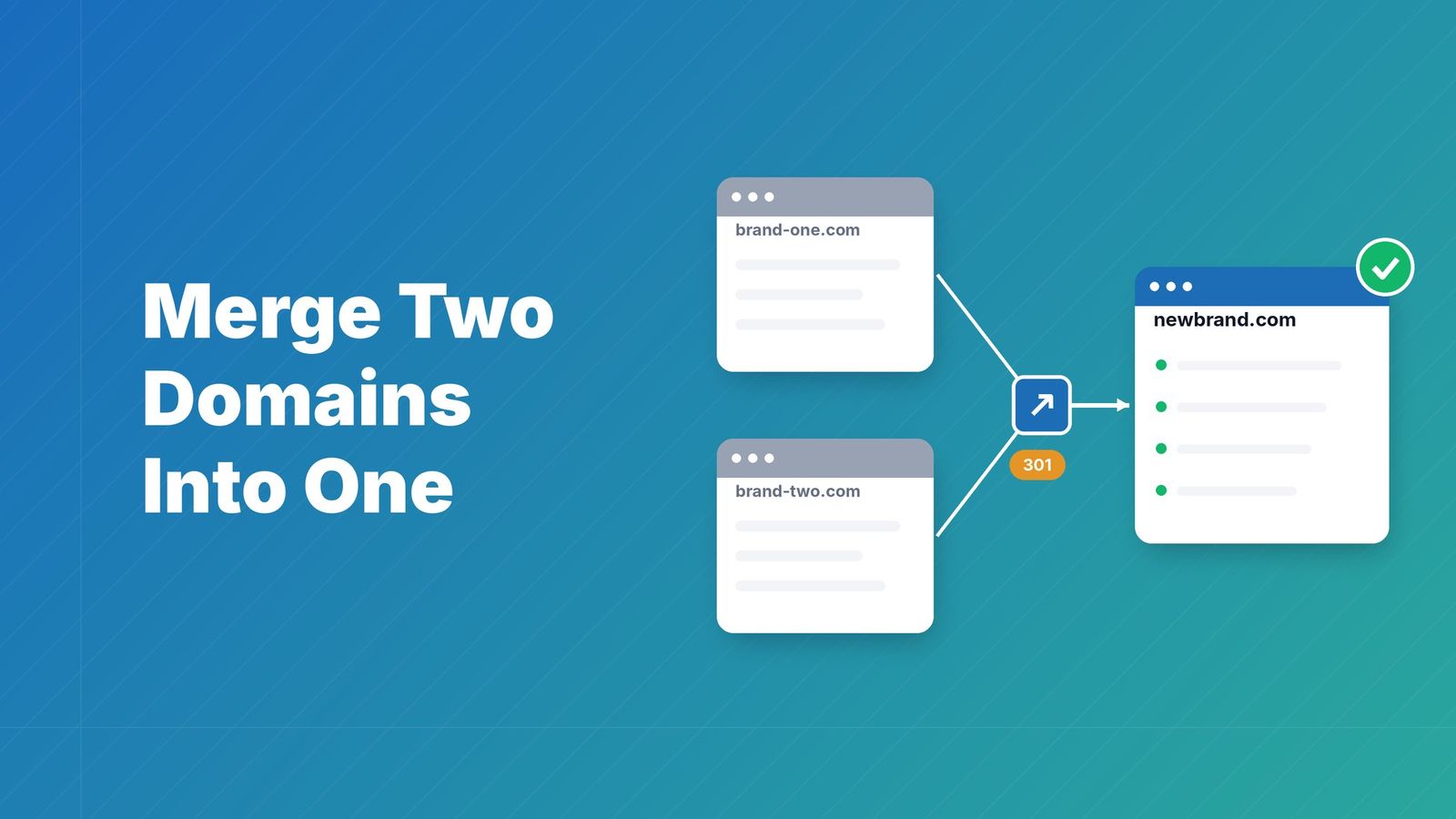
Sometimes a vanity domain is not new. You are moving links or a whole site from an old domain to a branded one. Then redirects matter as much as DNS.
Google’s Search Console guidance says to keep 301 redirects from old URLs to new ones for at least 180 days[6], and to keep renewing the old domain for at least a year so nobody else can register it and exploit your former brand. Treat those as minimums. If old links are in print, PDFs or other sites, keep the redirects far longer.
A workable migration order:
- Map every old URL to its new equivalent in a spreadsheet.
- Set up the new hostname and confirm SSL (Steps 2 to 4).
- Add 301 redirects from old URLs to new ones, one to one, not everything to the homepage.
- Test a sample of old URLs, including deep links with parameters.
- Submit the change in Search Console if you moved a full site.
- Monitor for 404s and fix gaps for several weeks.
For the planning side, keep URL continuity and make sure no page is left unmapped. We also cover the practical side in our SEO domain change guide and explain when to use 301 versus 302.
The risks nobody puts in the setup guide#
Setup takes an afternoon. Ownership lasts years. These are the failures that appear later.
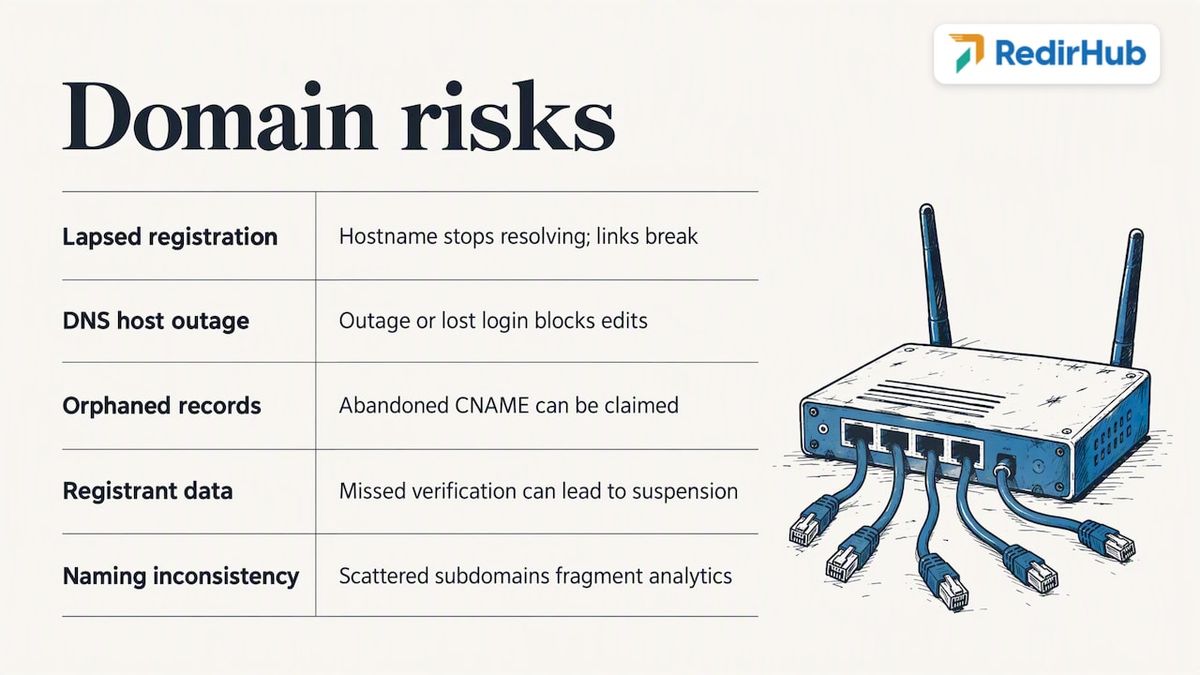
Lapsed registration. If the domain expires, the hostname stops resolving and every link you have ever created on it breaks at once. ICANN’s security advisory body notes that the registrant is responsible for keeping DNS information accurate and the zone healthy[7]. Turn on auto-renew, use a company email for the registrant contact and not a former employee’s, and set a calendar reminder for the renewal date.
Single point of failure at the DNS host. If your DNS provider has an outage, or you lose the login, nobody can edit the record. Keep two admins on the account and document where DNS lives.
Orphaned records. When you leave a platform, delete the CNAME. A dangling record pointing to a service you no longer use can be claimed by someone else on that platform.
Accuracy of registrant data. Registrars must collect accurate registration details, so keep your own registrant details current. Verification emails from your registrar are easy to miss, and ignoring them can lead to suspension.
No naming convention. Teams that spin up go., link., l. and short. subdomains across brands end up with scattered analytics and no one who knows which is live.
How fast a branded hostname answers: our benchmark#
Once the hostname is yours, the first thing a visitor hits is the redirect, so how quickly it answers matters. We measure this continuously: the median time to first byte of 26 providers’ redirects, from Washington, D.C., Frankfurt and Tokyo. For 18 to 25 October 2026, RedirHub’s median was 18 ms (the average of the three locations), against 51 ms for redirect.pizza, 90 ms for TinyURL and 123 ms for Bitly; the fastest provider in the set, Fastly, measured 11 ms. Source: RedirHub redirect speed benchmark, 18 to 25 October 2026[8] (CC BY 4.0). You can run your own vanity URL through the free redirect speed test to see where it lands.
Our perspective: treat the domain as infrastructure#
We see the same pattern with teams that come to us. The vanity domain gets set up once, by whoever had a free afternoon, and then it becomes the foundation for thousands of links, QR codes and campaign assets. Nobody owns it, and nobody notices until something breaks.
Our view is that a branded link domain should be handled like any other piece of brand infrastructure. That has three consequences.
First, the domain should be yours. A link on a shared shortener domain is controlled by someone else. A link on your own hostname stays under your control, can be pointed elsewhere later, and builds recognition for your name rather than a vendor’s.
Second, destinations should be editable. The expensive mistake is not the DNS record, it is printing a fixed destination on ten thousand brochures. If you can change where a link or dynamic QR code points after it is printed, a typo or a retired landing page becomes a five-minute fix instead of a reprint.
Third, certificates and routing are not your job. The less your team does by hand each quarter, the fewer things expire silently. That is why we handle SSL for custom domains as part of the service.
If you are setting up a vanity domain this week, the most valuable hour you can spend is not on the CNAME. It is on deciding who owns the domain in two years.
Setting up a vanity domain with RedirHub#
If you want to run branded links, dynamic QR codes or domain redirects on your own hostname without managing certificates yourself, RedirHub is built for that. You bring your domain, the HTTPS certificate is issued automatically once your DNS is in place, and you can change destination URLs without touching printed materials. Analytics show you how links and QR codes perform.
- Branded links for every channel on your own domain
- Dynamic QR codes whose destinations you can edit after printing
- Website migrations when an old domain needs to move to a new one
Branded links are included on Core, Pro and Enterprise. Core costs $49/month and Pro $119/month, both with a 14-day free trial; Enterprise is set by contract. On Pro, Custom Name Servers are a $100/month add-on and Dedicated Cluster is a $300/month add-on. See the full pricing page.
Troubleshooting a setup that will not validate#
When the platform keeps showing pending, work through this list in order:
- Check the record type. It must be a CNAME, not an A or TXT record, unless the platform tells you otherwise.
- Check the host field. The most frequent error is the doubled domain name described in Step 3.
- Check the target. A trailing space or a copy of the wrong target breaks validation silently.
- Look for conflicting records. A leftover A record on the same name will interfere.
- Check for proxy settings. If your DNS host proxies traffic by default, you may need to set the record to DNS-only while the platform validates, if its documentation says so.
- Wait for propagation. Give it the length of the old TTL before you assume something is wrong.
- Check CAA records. If your domain restricts which authorities may issue certificates, the platform’s authority must be allowed.
If all seven check out and the status is still pending after a day, contact the platform’s support with a screenshot of the DNS record. Support teams can usually see exactly what their validator sees.
Put your own hostname on your links
Connect your domain, get an automatic HTTPS certificate once DNS is in place, and change any destination after it is printed. Core and Pro start with a 14-day free trial.
See branded linksSources
- [1]Configuring Cloudflare for SaaS (Cloudflare docs)
- [2]How do I set up vanity URLs? (Oracle documentation)
- [3]Why can’t I add a CNAME record to my root domain? (NameSilo)
- [4]Strict-Transport-Security header (MDN)
- [5]Taking advantage of your TLD to improve web security with HSTS (AFNIC)
- [6]Change of Address tool (Google Search Console Help)
- [7]SAC 049: DNS Zone Risk Assessment and Management (ICANN SSAC)
- [8]RedirHub redirect speed benchmark, 18 to 25 October 2026
Frequently asked questions
It is a domain or subdomain chosen to reflect your brand, such as go.yourbrand.com, and used in place of the generic domain of a tool or platform. In practice it is usually a subdomain that you point at a platform with a CNAME record.
First add your chosen hostname in the platform, then create a CNAME record at your DNS host pointing to the target the platform gives you. Wait until the platform shows the hostname and SSL as active, then create the individual short links and test them.
Use a subdomain. A CNAME cannot normally sit at the root without breaking email and other records. If you need the bare domain to work, redirect it to the subdomain or your main site.
Entering the record takes a few minutes. Validation and certificate issuance can take anywhere from minutes to several hours, depending on DNS caching and your host. Plan to test the next business day for anything going into print.

Leo Astarothman is the Brand & Content Lead at RedirHub, where he shapes the company's visual identity, educational content, product experiences, and marketing strategies. He also specializes in system design. Simplifying complex redirect infrastructure into practical resources, product experiences, and campaigns that help businesses understand and adopt modern redirect management.
Related Articles
View All Articles