
Invite your team to a workspace so everyone works on the same links, QR codes and domains. Each member has one role that decides what they can do. Roles are available on every plan. Core includes 3 team members, Pro includes unlimited team members, and on Enterprise the number is set by contract.
Step 1: Open General & members#
Open your workspace settings and, under Workspace, click General & members. The Members section lists everyone in the workspace with their role and the date they joined, plus any pending invitations.
Step 2: Invite people by email#
- Enter the email address of the person you want to invite.
- Pick their role, for example Editor.
- Click Send invites.
The invitation shows as Pending with its role until it is accepted.
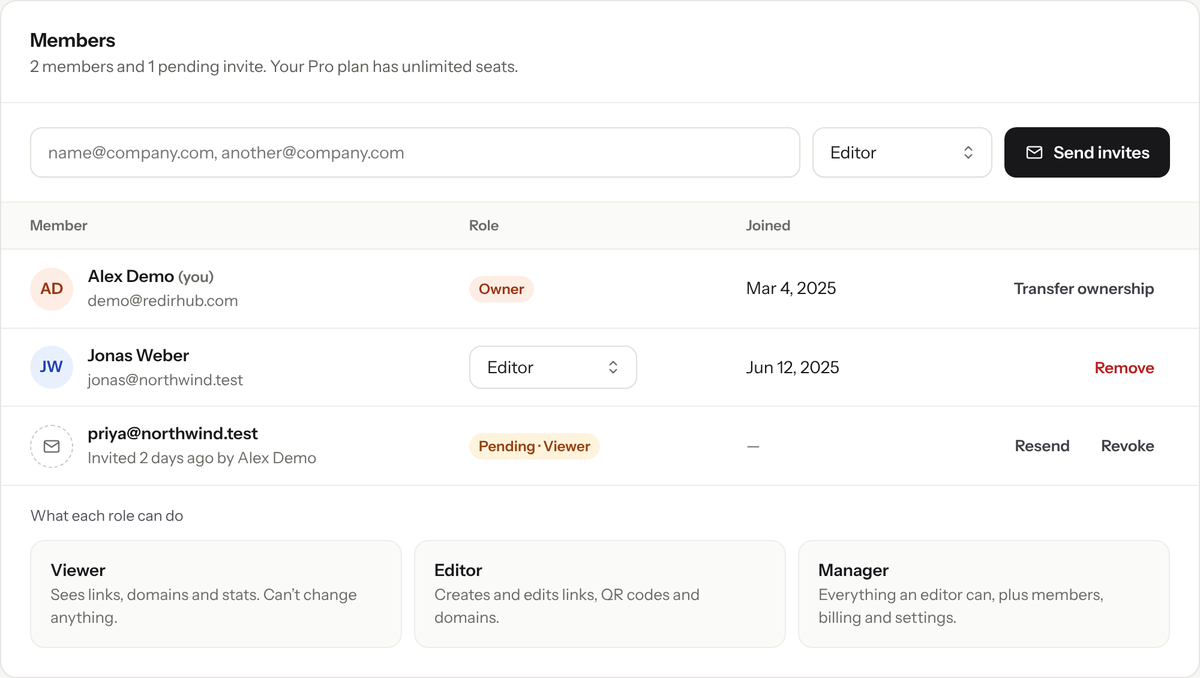
Invite teammates by email and pick their role.
Step 3: Choose the right role#
| Role | What they can do |
|---|---|
| Owner | Everything, including deleting the workspace. There is one owner per workspace. |
| Manager | Team settings, billing and members, plus viewing and managing resources. |
| Editor | Creates, edits and deletes links, QR codes and domains. No team settings or members. |
| Viewer | Views resources and team information only. |
Step 4: Manage members and invitations#
- To change a member’s role, pick a new one in the Role column.
- To take someone out of the workspace, click Remove.
- For a pending invitation, click Resend to send it again or Revoke to cancel it.
Good to know#
- API tokens act with the role of the person who created them. See Create and manage API tokens.
- Managers can also get the workspace emails the owner gets. See Change your language, timezone and email notifications.
Frequently asked questions
Core includes 3 team members and Pro includes unlimited team members. On Enterprise, the number is set by contract.
An Editor creates, edits and deletes links, QR codes and domains. A Manager can also handle team settings, billing and members.
No. Viewers can only view resources and team information.
It stays pending. You can resend it, or revoke it to cancel the invitation.