
When someone else pays for RedirHub, usually your finance team, you don’t need to share a login or a card. Choose the plan yourself, then send them a payment link. Finance opens it, sees exactly what they are paying for and pays without a RedirHub account. Payment links work for the Core and Pro plans; Enterprise is set by contract.
To create or send a link you need billing permission in the workspace: the owner or a manager.
Step 1: Choose the plan and add-ons#
Open Pricing in the dashboard and choose a plan. A window shows the workspace, the plan’s capacity, a Monthly / Annual switch and the total. On Pro you can also tick optional add-ons, such as SSO, custom name servers or a dedicated cluster.
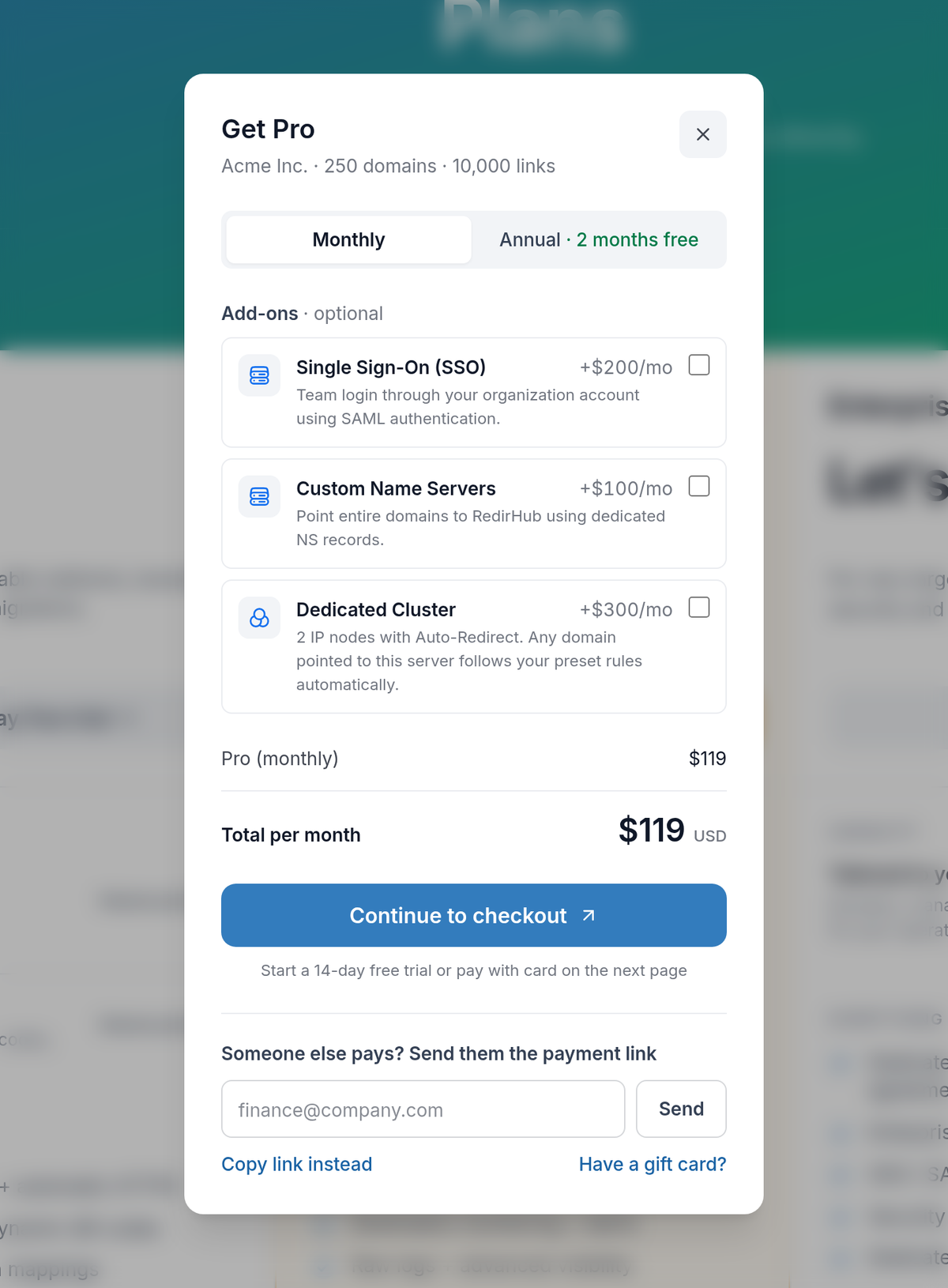
Choose the plan, billing period and any add-ons.
Paying yourself? Click Continue to checkout. Otherwise, go on to step 2.
Step 2: Enter finance’s email or copy the link#
Under Someone else pays? Send them the payment link, enter your finance team’s email address and click Send. The window confirms where the link went and that it works for 7 days. Prefer to share it in chat or your own email? Click Copy link instead.
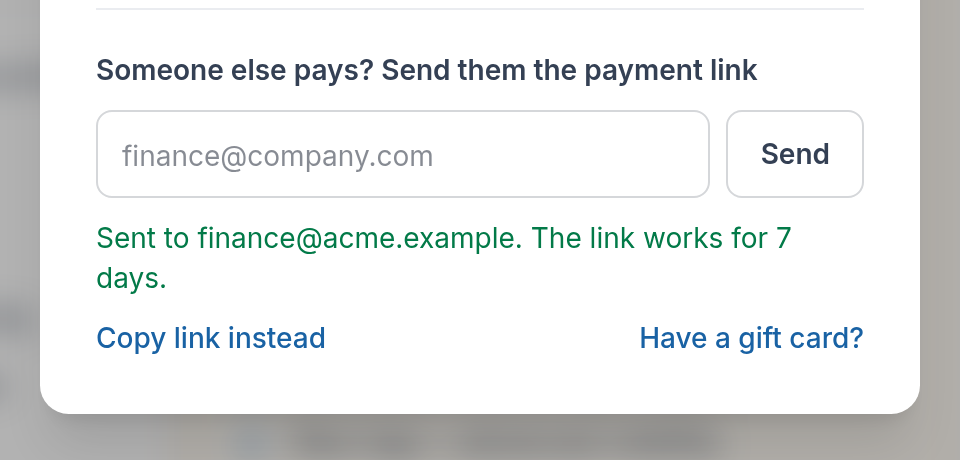
The link is on its way to finance.
Step 3: What finance receives#
Finance gets an email from RedirHub saying who asked them to pay, with the plan and add-ons you picked, the total, the date the link expires and a Review and pay button. Replies go straight to you, so they can ask questions by answering the email.
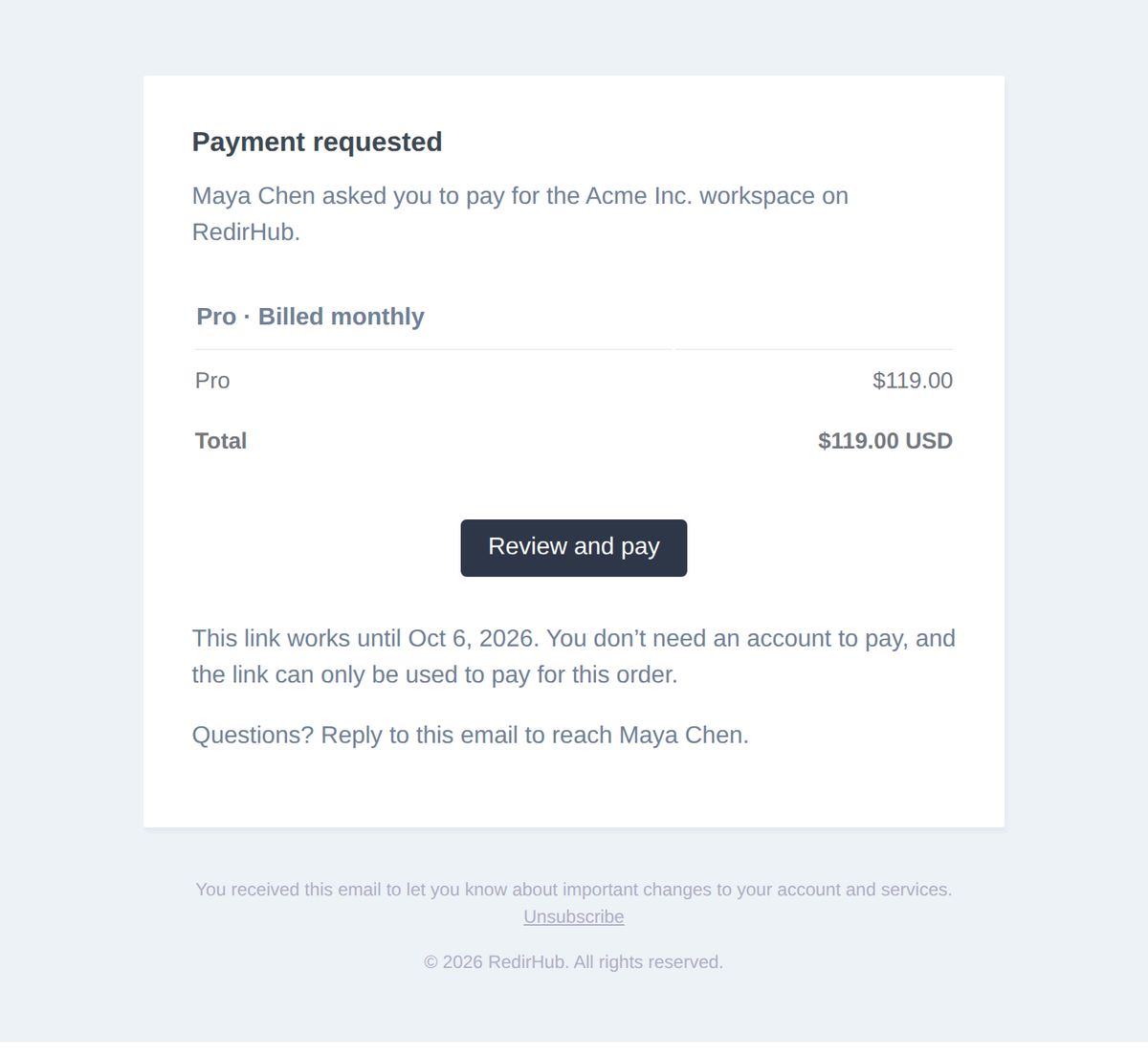
The email finance receives.
Step 4: Finance pays on the checkout page#
The link opens a checkout page that works without signing in. It shows the workspace, who requested the payment, each line item and the total per billing period. The link can only pay for this order and gives no access to the workspace.
Payment goes through Stripe Checkout, which takes cards and shows Apple Pay or Google Pay when the browser and device support them. Finance picks one of two buttons:
- Start 14-day free trial: shown when the workspace is eligible for a trial. Nothing is charged today.
- Pay now: pays for the first billing period right away.
If the workspace has no billing email yet, finance can add one under Where should invoices and receipts go? The workspace owner is notified.
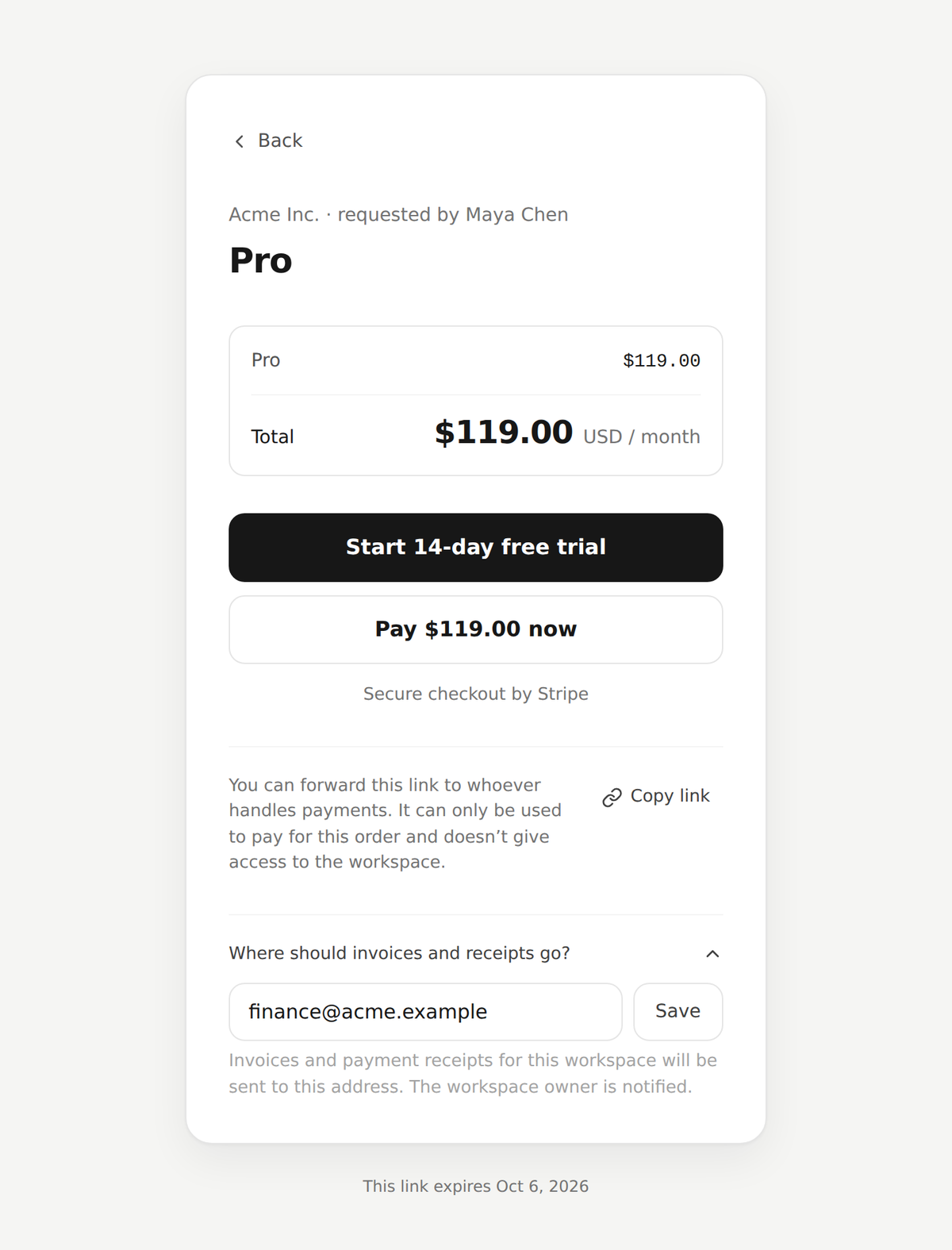
Finance pays on the checkout page, no account needed.
Good to know#
- The link works for 7 days. The expiry date is in the email and at the bottom of the checkout page.
- A workspace has one payment link at a time. If you change the plan, billing period or add-ons, the same link updates: finance sees the new selection and the link works for another 7 days.
- After payment, receipts go to the payer, the workspace owner and the billing email. The subscription renews until it is cancelled.
- An expired or replaced link says so and names the person to ask for a new one.
- Already subscribed? Change your plan in the dashboard instead. The change is prorated and charged to the card on file.
Frequently asked questions
No. They pay on a checkout page without signing in. The link can only pay for this order and gives no access to the workspace.
7 days. Changing the plan, billing period or add-ons updates the same link and gives it another 7 days. If it expires, send a new one from the dashboard.
Workspace members with billing permission: the owner and managers.
Only when the workspace has none yet. They can then add one on the checkout page, and the workspace owner is notified. An existing billing email cannot be replaced from there.