
Links in the sidebar is where everything your workspace creates lives: branded links, dynamic QR codes, domain redirects and website migrations. It is available on every plan. Core includes 25 domains and 2,500 managed links ($49/mo), Pro includes 250 domains and 10,000 managed links ($119/mo), and Enterprise is set by contract.
Step 1: Find a link#
Each row shows the link, its destination, its clicks (or scans for QR codes) with this week’s change, and when it was created. To narrow the list:
- Type in the search box.
- Use the quick filters: your busiest domain, Last 7 days, DNS issue, Paused, and more under More, such as links with no clicks in 4 weeks. Any filter can be pinned to the bar.
- Use a Type filter to show one kind of link only, and Show to change the order.
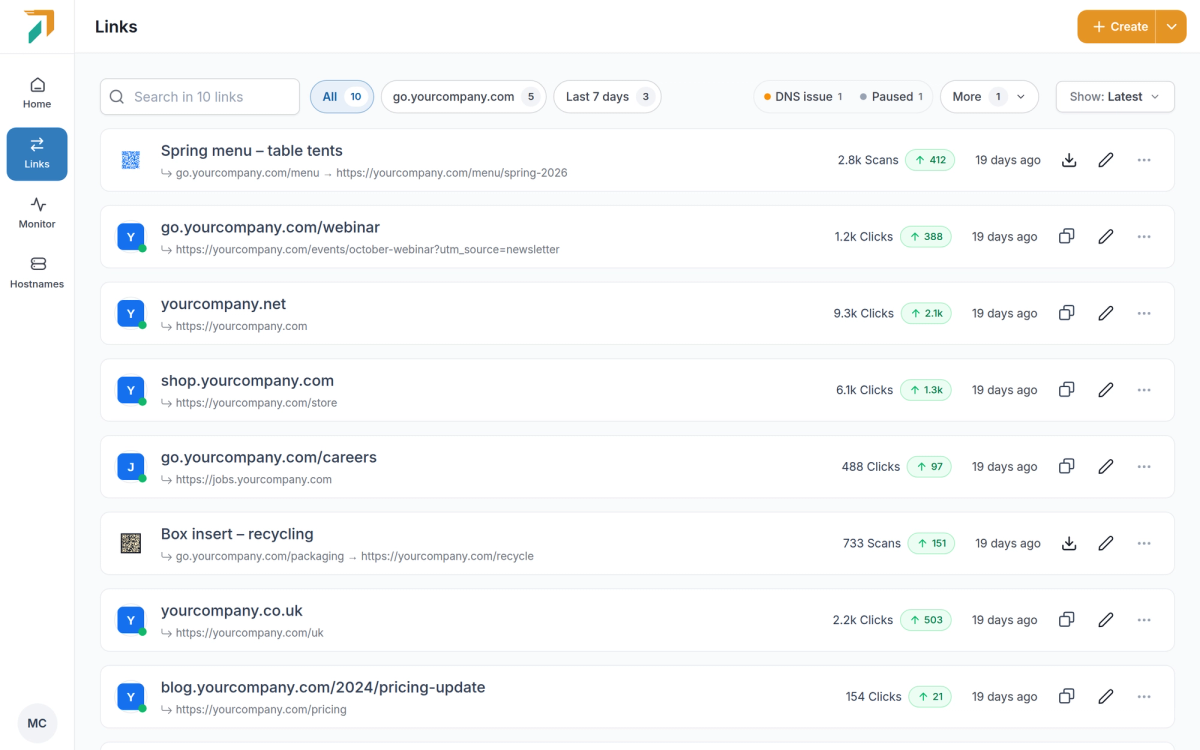
Links lists everything your workspace has created.
Step 2: Create a link#
Click Create and pick the job:
- Branded Link: a short, memorable link on a domain you own.
- Dynamic QR Code: a trackable QR code whose destination can change after it is printed.
- Domain Redirect: redirect a domain, subdomain or path with a 301 or 302.
- Website Migration: move many URLs with one same-path rule, or map them one-to-one by pasting, adding by hand or uploading a CSV.
Already have a spreadsheet of links? Click Import CSV. When you choose a short-link alias, RedirHub checks it is available while you type.
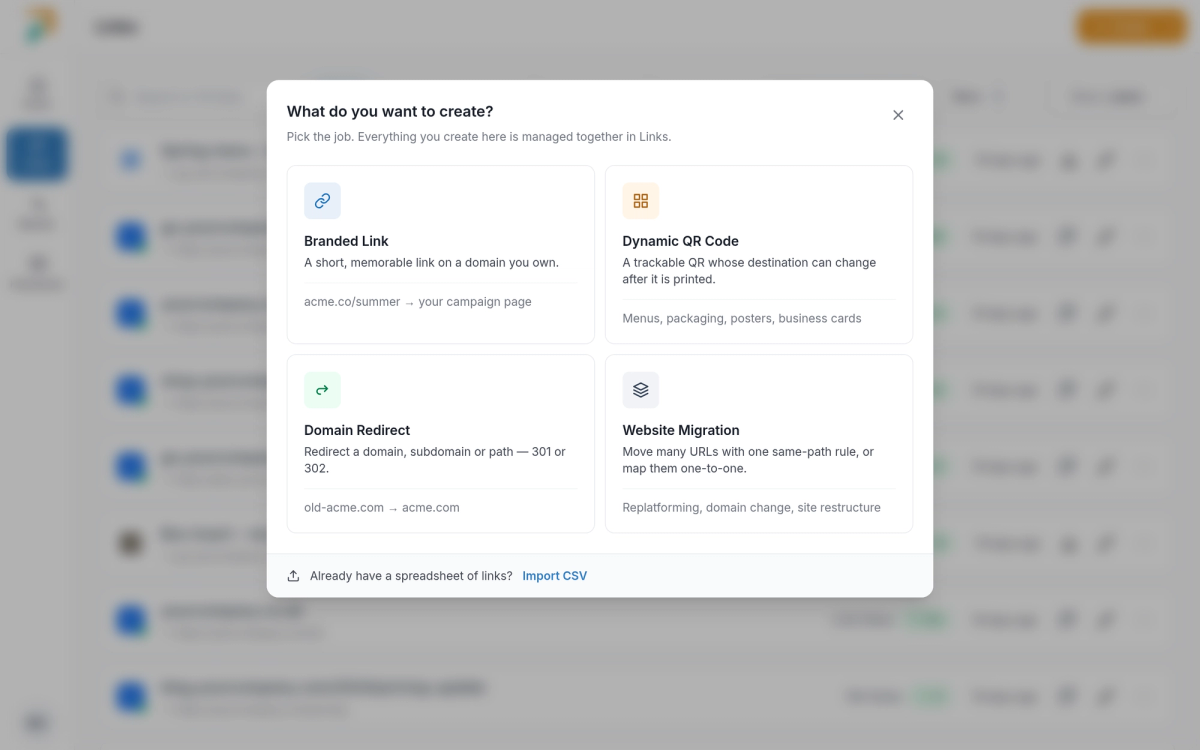
Create starts from what you want to make.
Step 3: Style and download a QR code#
Open a QR code link to see its details. In the QR code section you can set:
- Theme: Light or Dark, and one of four Code colour options.
- Logo: turn on Workspace logo, or Upload logo (PNG, JPG, GIF or WebP, up to 5 MB, set once per workspace).
- Readable URL: print the link under the code. It is on by default.
- Margin: S, M or L.
Then choose PNG (512, 1024 or 2048 px) or SVG and download the file, for example with Download PNG.
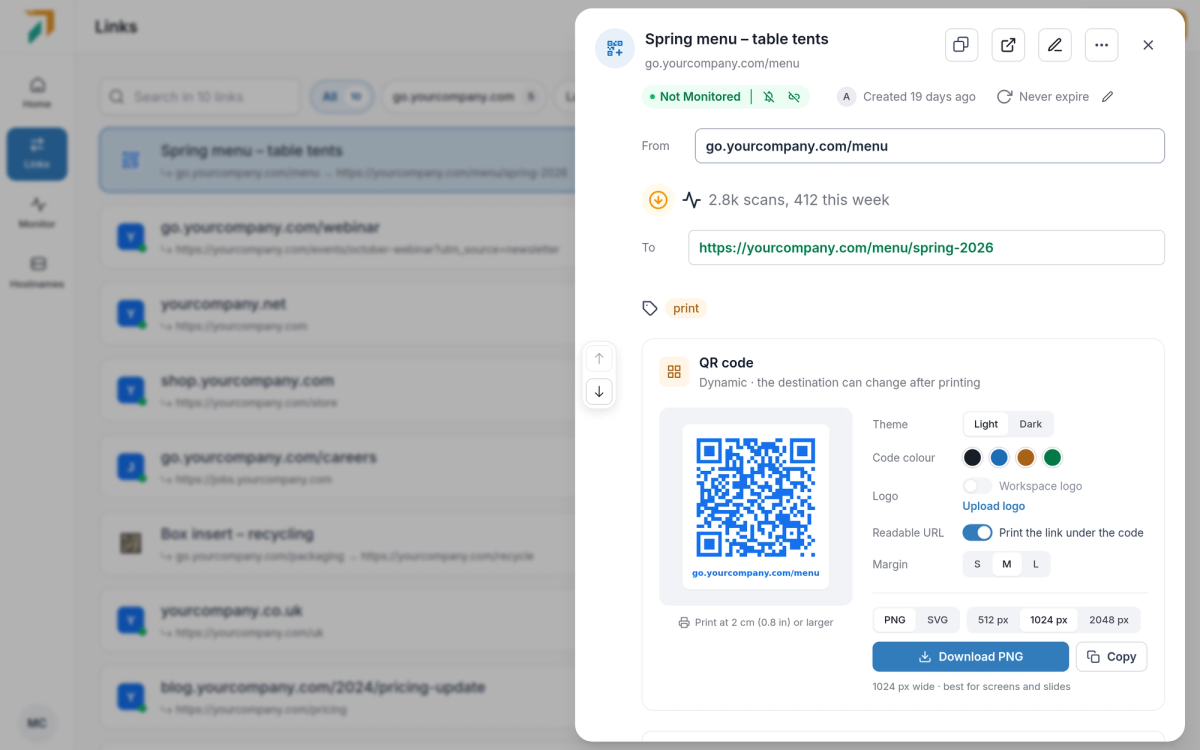
Style a QR code and download it as PNG or SVG.
Good to know#
- You can change the destination of any link later. Printed QR codes keep working.
- The source URL can’t be edited after a link is created. Create a new link instead.
- The API and MCP return the same QR image as the dashboard.
Frequently asked questions
Yes. Dynamic QR codes are short links, so you can change the destination at any time and the printed code keeps working.
No. The source URL can’t be edited after the link is created. Create a new link with the new source instead.
PNG, JPG, GIF or WebP, up to 5 MB. The logo is set once per workspace.
They are now one Links page. The old pages redirect to Links.