
Destination history shows every change made to a link after it was created: who made it, when, the old and new value, and where the change came from. Use it to find out why a link suddenly goes somewhere else, or to check what a teammate or an automation changed. It is available on Pro, and on Enterprise as set by your contract.
Step 1: Open the link#
In Links, click a link to open its details.
Step 2: Open Destination history#
Find the Destination history panel. Its header shows the number of changes and who made the latest one, and when. Click the header to expand it.
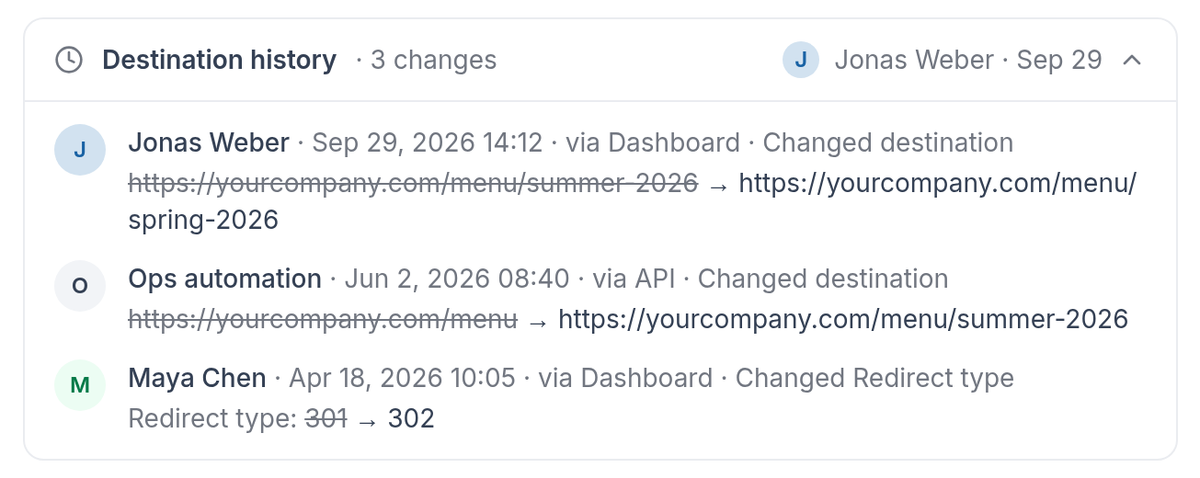
Destination history lists every change, newest first.
Step 3: Read each change#
Changes are listed newest first. Each one shows:
- Who made the change, and the date and time.
- Where it came from: Dashboard, API, MCP, CSV import or Auto-redirect.
- What changed, such as the destination or the redirect type, with the old value crossed out next to the new one.
Good to know#
- The panel appears only when a link has been changed. Creating a link doesn’t add an entry.
- On other plans you see a PRO tag, the number of changes and an upgrade card. Changes are still recorded.
- AI assistants connected through RedirHub MCP can read the same history on Pro.
Frequently asked questions
Yes. Changes are recorded on every plan. Other plans see the number of changes and an upgrade card; on Pro you see the full history.
The panel only appears once a link has been changed. Creating a link doesn’t add an entry.
Yes. Each change shows its source: Dashboard, API, MCP, CSV import or Auto-redirect.