
Bulk actions let you change many links at once instead of opening them one by one. Each action opens a panel that shows what will happen before anything changes. Bulk actions are available on every plan; turning on monitoring needs Pro.
Step 1: Select links#
In Links, tick the links you want to change. To include every link that matches your current filters, click Select all … items. A bar opens at the bottom of the page with Tags, Destination, Monitoring, Download QR, Export and a … menu.
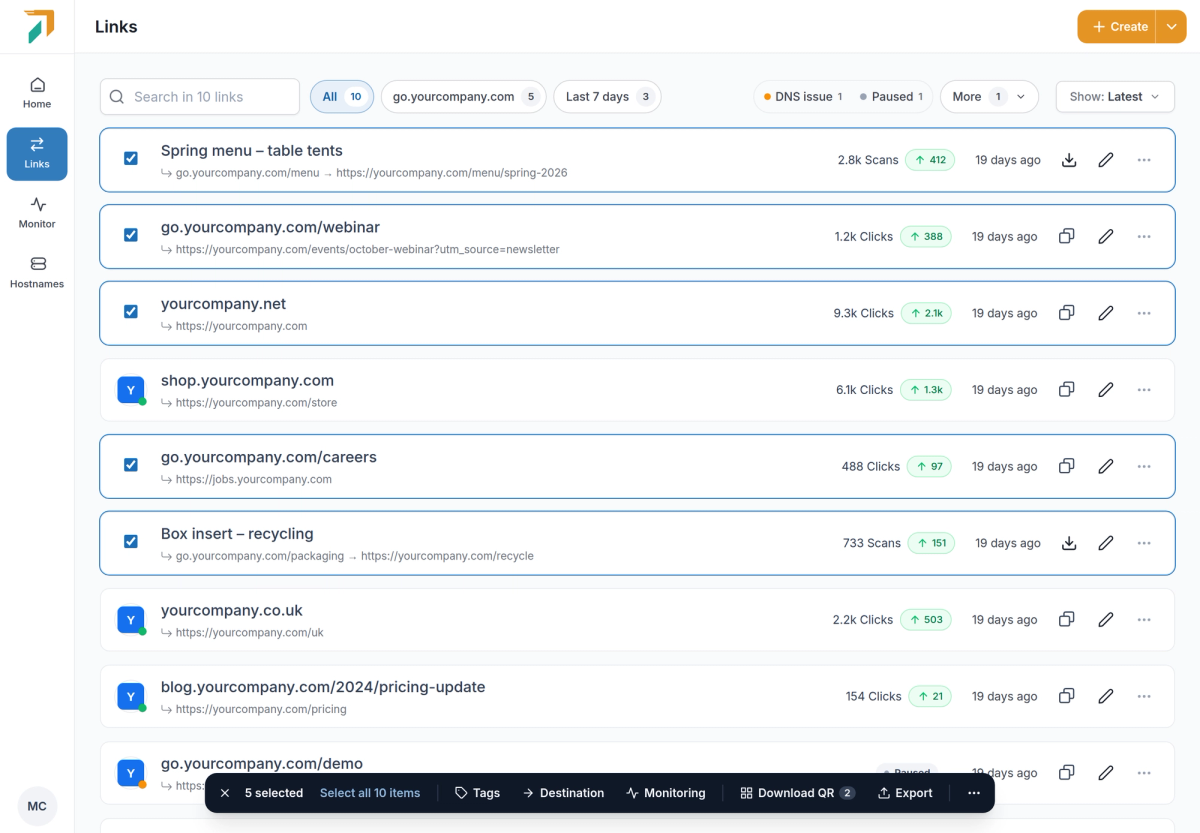
Selecting links opens the bulk bar.
Step 2: Change the destination#
Click Destination and pick one of three modes:
- Find and replace: swap part of the URL, such as an old domain for a new one.
- Replace URL: send all selected links to one new URL.
- Add parameters: add query parameters to every destination.
The Preview lists each link with its old destination crossed out and the new one below. Links where nothing matches stay the same. Click Update … links to apply.
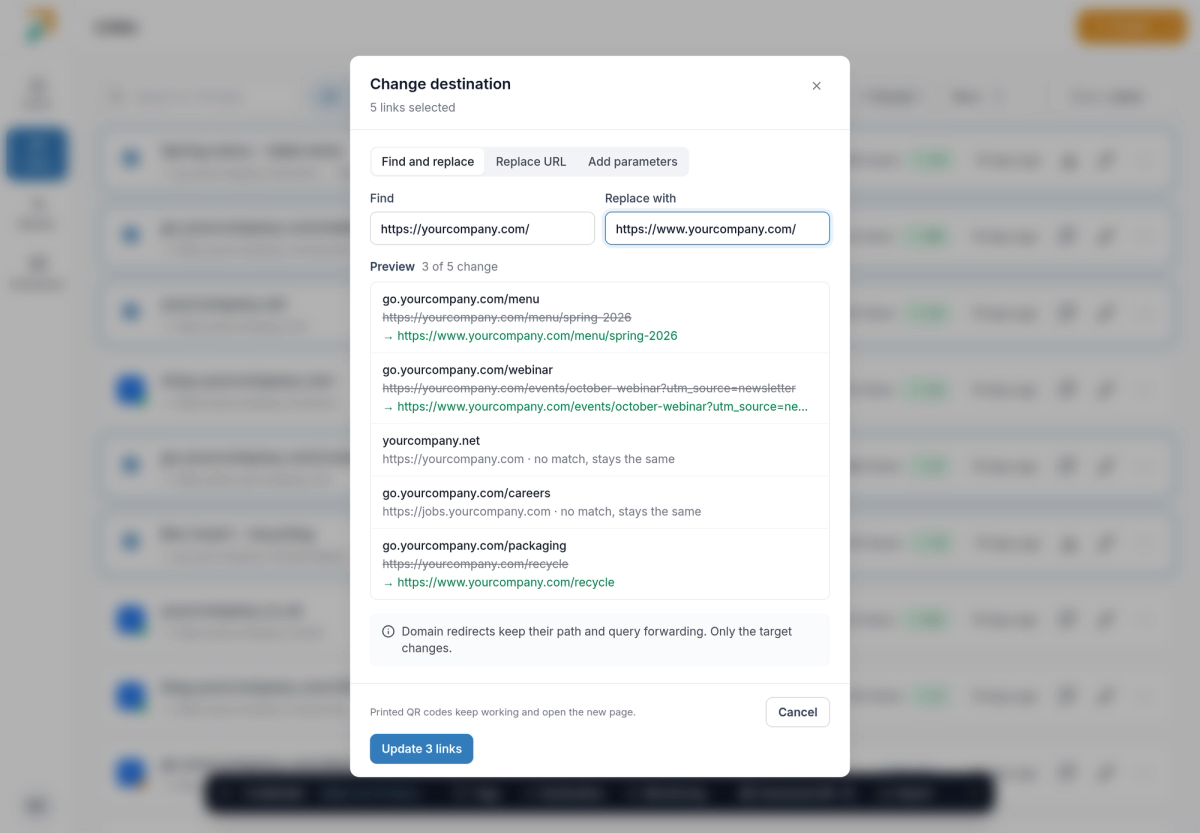
The preview shows exactly which destinations change.
Forwarding and QR codes keep working
Domain redirects keep their path and query forwarding; only the target changes. Printed QR codes keep working and open the new page.
Step 3: Tags, monitoring and QR codes#
- Tags shows which tags the selected links share. Add or remove a tag on all of them, or create a new one.
- Monitoring turns monitoring on or off. Turning it on is a Pro feature; turning it off works on every plan.
- Download QR downloads the QR codes as PNG (choose a size), SVG, or a print PDF with one code per page.
Step 4: Export links#
You can open the export in two ways. To export some links, select them and click Export in the bulk bar. To export every link that matches your current filters, open the arrow next to Create and choose Export; you don't need to select anything first.
The Export links dialog shows the filters, the order and how many links will be exported before anything downloads. Choose CSV or Excel, then the columns:
- Link, destination, type and status: always included.
- Title, description and tags: optional.
- Clicks: optional. Two columns: total clicks since the link was created, and clicks in the last 4 weeks. A link without clicks shows 0.
Rows follow the order of your list, so exporting with Most clicks gives you a ranked report. Click Download CSV, or Download Excel if you chose Excel. On a phone, the same options open in a sheet at the bottom of the screen.
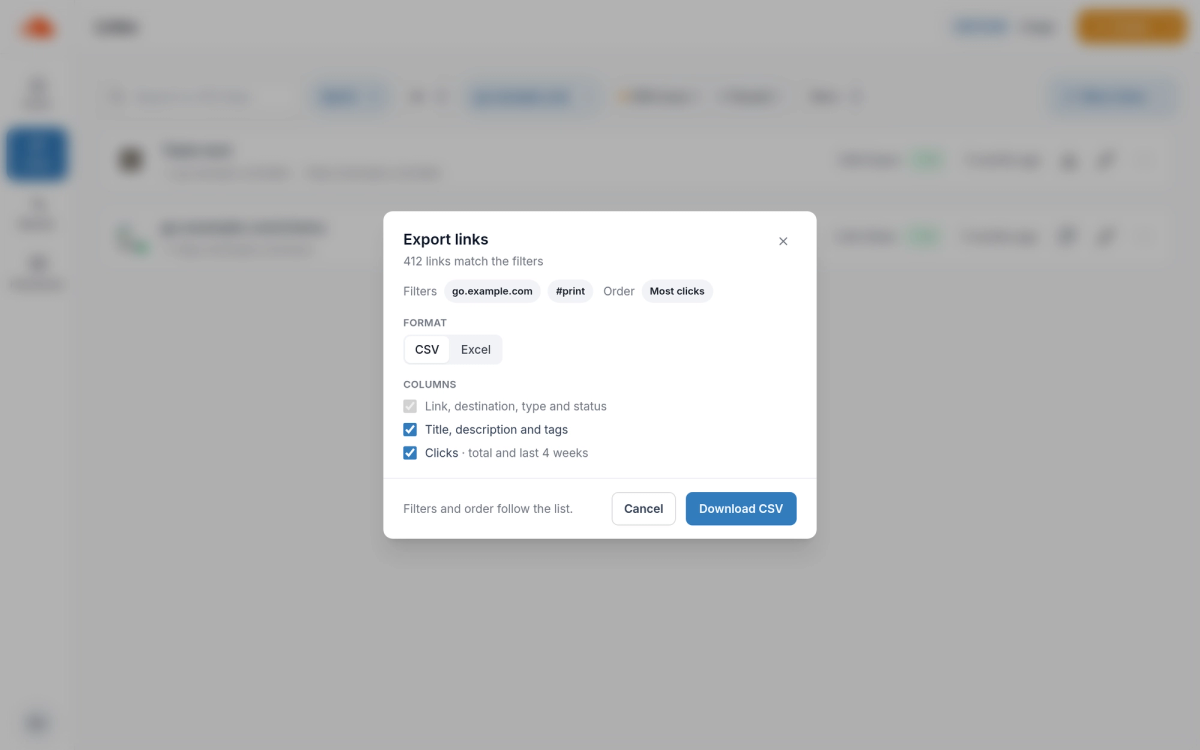
The dialog shows the filters, the order and how many links you are exporting.
Exporting 1,000 links or more#
From 1,000 links, RedirHub prepares the file as a CSV and emails you a download link, usually within a few minutes. Excel is not available for these exports, and the button reads Email me the file. The emailed file has the same columns and order as a direct download.
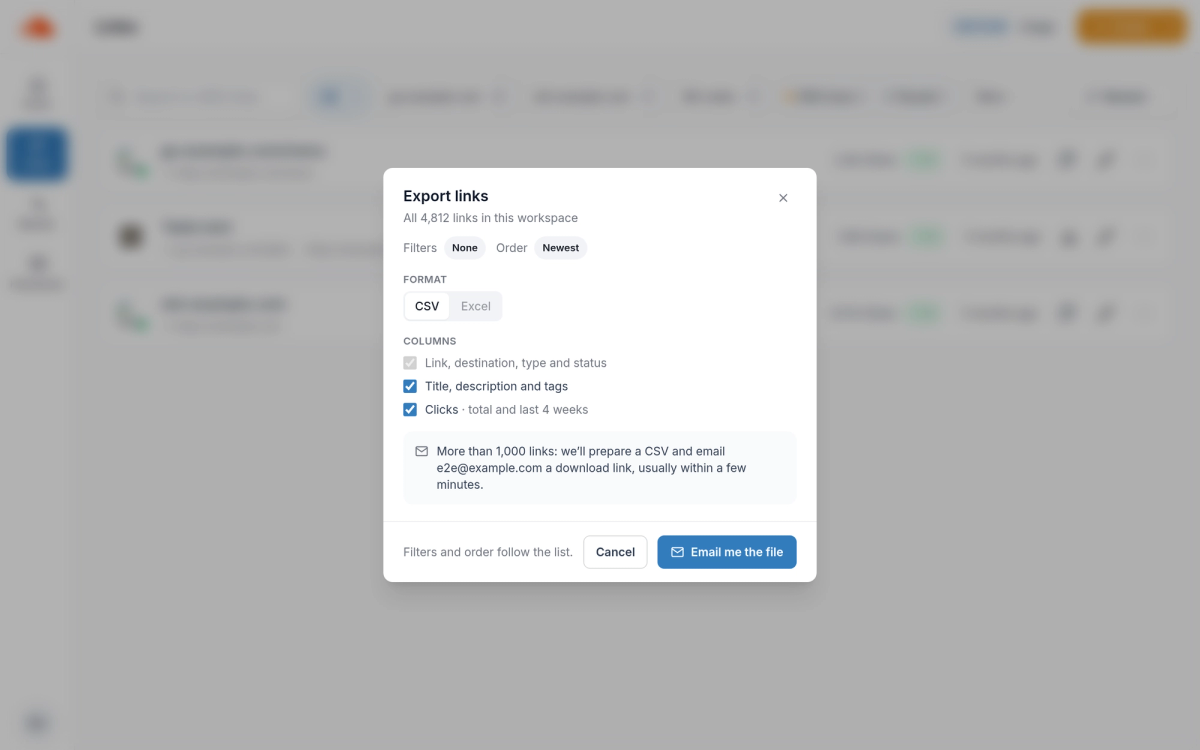
Large exports arrive by email as a CSV download link.
Pause, resume or delete#
The … menu in the bulk bar has Pause, Resume and Delete. Before deleting, RedirHub shows how many of the links had visits in the last 4 weeks. Resume brings back links that were paused because the workspace went over its plan, once the plan covers them again. While the workspace is still over its plan, they stay paused and the dashboard says how many.
Good to know#
- Visit counts shown before a delete cover the last 4 weeks. Exports can include total clicks and clicks in the last 4 weeks.
- Bulk changes are also available through the API.
Frequently asked questions
No. Printed QR codes keep working and open the new destination.
Yes. Domain redirects keep their path and query forwarding. Only the target changes.
Open the arrow next to Create and choose Export. The export covers every link that matches your current filters, in the list's order. From 1,000 links, the file is emailed to you as a CSV download link.
Bulk actions work on every plan. Turning on monitoring needs Pro.