


Connect RedirHub to Claude, Cursor, or Codex in 5 Minutes

You don't need a paid subscription, a complex API integration, or any MCP experience. Here's the full checklist:
A RedirHub account — Free plan works. Sign up at redirhub.com (no credit card required).
Your AI client of choice — Claude Desktop, Cursor, or VS Code with Codex. Pick whichever you already use.
2–5 minutes — Depending on yin toour client. Claude Desktop takes the longest (the config file step); Cursor and Codex are faster.
A workspace — RedirHub creates one for you on signup. You'll generate an API token for it in Step 1.
That's it. You won't write any code in this tutorial — every step is copy-paste from a config snippet. Let's start.
Step 1: Generate Your Workspace API Token#
The MCP server authenticates using a workspace-level API token. You generate it once, then paste it into your client's config.
- Log into your RedirHub dashboard.
- Navigate to Settings → API Tokens in the left sidebar.
- Click Generate Token and give it a name like "Claude Desktop" or "Cursor MCP."
- Copy the token — it starts with
rh_and is shown only once.
Important: Keep this token private. Anyone with it can manage your redirects via MCP. You can revoke or rotate it anytime from the same settings page.
Even if you're on the Free plan, you have access to the full MCP server - 17 tools and 15 resources. No upgrade needed. The token gives your AI agent the same CRUD permissions your dashboard account has.
Step 2: Add the MCP Config to Your Client#
The MCP server endpoint is:
https://api.redirhub.com/mcp/v1
Authentication is a bearer token in the Authorization header. Each client handles this config slightly differently. Pick your client below.
Claude Desktop Setup#
Claude Desktop reads its MCP servers from a JSON config file. By default, this lives at:
macOS: ~/Library/Application Support/Claude/claude_desktop_config.json
Windows: %APPDATA%\Claude\claude_desktop_config.json
Linux: ~/.config/Claude/claude_desktop_config.json
Open this file (create it if it doesn't exist) and add the following:
{
  "mcpServers": {
    "redirhub": {
      "command": "npx",
      "args": [
        "-y",
        "@anthropic/mcp-client",
        "https://api.redirhub.com/mcp/v1",
        "--header",
        "Authorization: Bearer YOUR_API_TOKEN"
      ]
    }
  }
}
Replace YOUR_API_TOKEN with the token from Step 1. Save the file, then completely quit and reopen Claude Desktop (Cmd+Q on macOS, not just close the window).
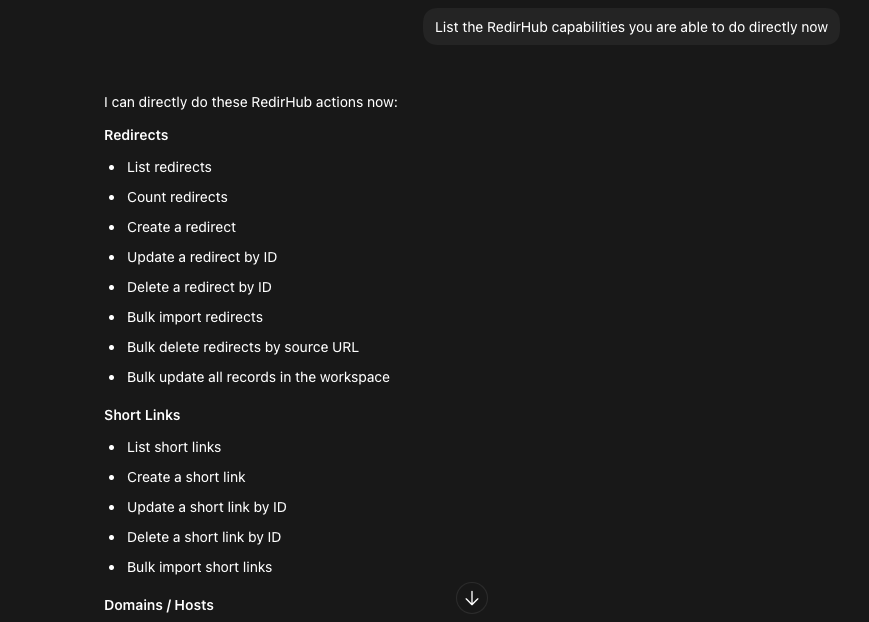
After restart, you should see a small 🔌 icon in the chat input bar. Click it — you'll see 17 RedirHub tools listed. If you don't, check the Troubleshooting section below.
Cursor Setup#
Cursor uses a .cursor/mcp.json file in your project root. This is per-project, so you can enable MCP access selectively.
Create .cursor/mcp.json in your project:
{
  "mcpServers": {
    "redirhub": {
      "url": "https://api.redirhub.com/mcp/v1",
      "headers": {
        "Authorization": "Bearer YOUR_API_TOKEN"
      }
    }
  }
}
Save the file and restart Cursor (or run Developer: Reload Window from the command palette). In Cursor's AI chat, the RedirHub tools will now be available — just ask the agent to do something with redirects and it will use them automatically.
VS Code / Codex Setup#
OpenAI Codex reads MCP config from a .codex/mcp.json file (same format as Cursor). If you're using the Codex VS Code extension:
{
  "mcpServers": {
    "redirhub": {
      "url": "https://api.redirhub.com/mcp/v1",
      "headers": {
        "Authorization": "Bearer YOUR_API_TOKEN"
      }
    }
  }
}
Save .codex/mcp.json in your project root, then restart the Codex extension. You can also configure this globally via the Codex settings panel under MCP Servers → Add Server.
For any other MCP-compatible client: the config pattern is the same — HTTP transport at https://api.redirhub.com/mcp/v1 with a Bearer token header. Consult your client's MCP documentation if the format differs.
Step 3: Your First AI-Powered Redirect#
Your client is connected. Let's do something real — skip the dashboard entirely and let your AI agent handle it.
Create a 301 Redirect via Chat#
Open your AI client and type:
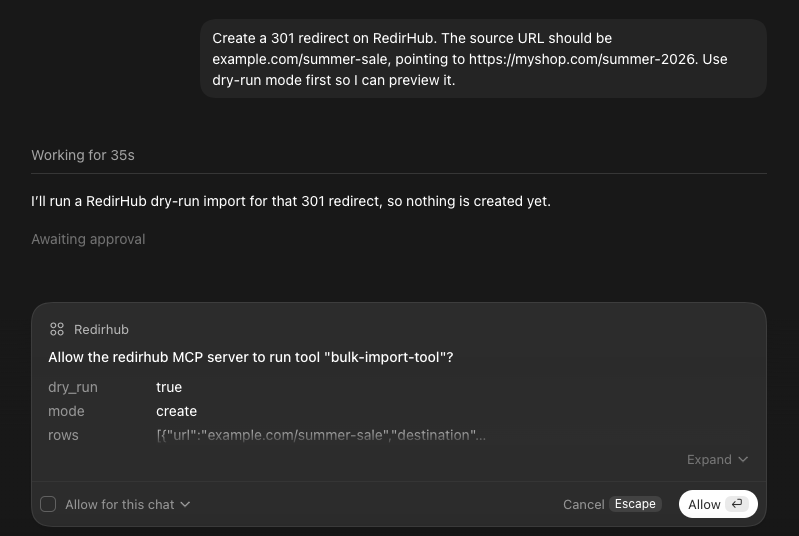
"Create a 301 redirect on RedirHub. The source URL should be /summer-sale on my domain, pointing to https://myshop.com/summer-2026. Use dry-run mode first so I can preview it."
Your agent will:
- Call the CreateLink tool with dry_run: true
- Show you exactly what will be created — the source, destination, redirect type, and which workspace it lives in
- Wait for your confirmation before going live
Once you confirm, the redirect is created — same result as filling out the dashboard form, but without leaving your terminal or chat window.
List All Your Short Links in One Message#
Now try:
"List all my short links in my active RedirHub workspace."
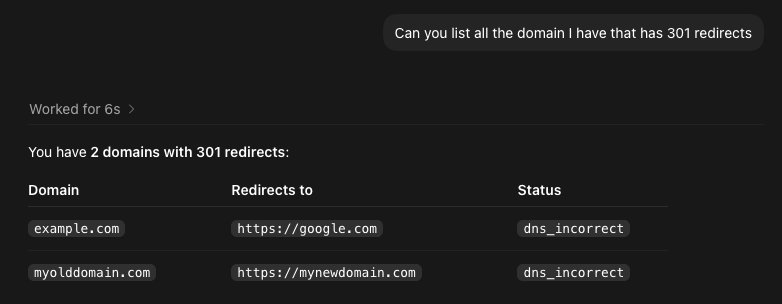
Your agent calls the ListLinks resource and returns them in a structured format — domain, slug, destination URL, and status. No filtering dropdowns, no pagination clicking. Just one prompt.
This is the mental-model shift: you're not filling out forms anymore. You're having a conversation with your infrastructure. Your AI agent translates your intent into the right MCP tools.
What You Can Do Next: 5 Real Prompts to Try#
Here are five prompts that go beyond the basics. Copy-paste any of them into your connected AI client.
1. Bulk import from a CSV: "I have a CSV at ~/redirects.csv with columns 'from' and 'to'. Import all of them into RedirHub as 301 redirects. Use dry-run first."
2. Find and fix broken links: "Check all my redirects that point to 404 destinations. List them and offer to update each one to a working URL."
3. UTM parameter sweep: "Add ?utm_source=newsletter&utm_medium=email to every redirect destination in my workspace. Dry-run first."
4. Workspace audit: "Show me a summary of my workspace: total redirects, domains, active hosts, and any that haven't been visited in 30 days."
5. Domain migration prep: "I'm migrating from oldsite.com to newsite.com. Generate a redirect map — every /path on oldsite should 301 to the same /path on newsite. Show me the list before creating anything."
Each of these would take 15–45 minutes manually. With MCP, each is one prompt and a confirmation. You can manage redirects at a speed that wasn't possible before.
Troubleshooting: Common Setup Issues#
"I don't see the tools in Claude/Cursor/Codex"
Check 1: Did you restart the client completely? MCP servers are loaded at startup. A window close isn't enough — quit the app.
Check 2: Is your config file in the right location? Claude Desktop on macOS recently moved its config. Try running:
ls ~/Library/Application\ Support/Claude/claude_desktop_config.json
Check 3: Is the token valid? Test it directly:
curl -H "Authorization: Bearer YOUR_API_TOKEN" https://api.redirhub.com/mcp/v1
A successful response means the token works. If you get a 401, regenerate your token in the dashboard.
"The config file won't parse"
Make sure your JSON is valid. Common issues: trailing commas (the last property in an object should not have a comma after it), unescaped special characters in the token, and wrong file paths. Paste your config into any JSON validator if you're unsure.
"My token was accidentally committed to a public repo"
Revoke it immediately from Settings → API Tokens in your RedirHub dashboard. Generate a new one. Consider storing the token in an environment variable instead of hardcoding it — most MCP clients support ${ENV_VAR} syntax in config files.
"Which plan do I need for MCP?"
All of them. RedirHub's MCP server is available on Free, Basic, Pro, and Enterprise. The Free plan gives you the full 17 tools, 15 resources, and bulk operations with dry-run safety. No upgrade required to connect your AI agent.
Put your domain to work.
Manage branded links, QR destinations, and redirects from one reliable control layer.
Get StartedFrequently asked questions
RedirHub's MCP server is a Model Context Protocol endpoint that lets AI agents — like Claude, Cursor, and Codex — manage URL redirects directly. It exposes 17 tools and 15 resources, covering everything from creating single redirects to bulk-importing thousands of records, all from your chat interface or terminal.
RedirHub's MCP server is compatible with any MCP client that supports HTTP transport. Tested and verified: Claude Desktop, Cursor, OpenAI Codex (VS Code extension), and Continue.dev. The config pattern is the same across clients — just the endpoint URL and your API token.
No. MCP access is included on every RedirHub plan, including the Free tier ($0/month). You get the full set of 17 tools, 15 resources, bulk operations, and dry-run safety — no upgrade required. Paid plans add link monitoring, more hostnames, and team features.
The REST API requires you to write HTTP requests, handle authentication, parse JSON responses, and build your own tool integrations. MCP lets your AI agent handle all of that — you just describe what you want in natural language, and the agent picks the right tools. Same capabilities, zero code.
Yes. Every bulk operation — import, update, delete — supports dry-run mode. Your agent can preview exactly what will change before anything goes live. This is the default behavior we recommend: always dry-run first, then confirm.
Yes. Each workspace has its own API token. If you work across multiple RedirHub workspaces (e.g., one for a client project, one for internal tools), add each as a separate MCP server entry in your config with a unique name — like "redirhub-client" and "redirhub-internal." Your AI agent can then access both.
Revoke the API token from Settings → API Tokens in your RedirHub dashboard. This instantly cuts off MCP access for any client using that token. You can generate a new token at any time. We recommend rotating tokens quarterly as a security practice.
All MCP communication uses HTTPS (TLS 1.3). Your API token is sent as a Bearer header over an encrypted connection. The MCP server endpoint runs on the same global edge infrastructure as the RedirHub API, with 99.99% uptime.

Linh handles the backend systems that keep RedirHub fast and reliable. Her work revolves around performance, scalability, and making sure redirects happen instantly, no matter where users are. She likes solving complex problems quietly.