


Hostnames → Connect DNS
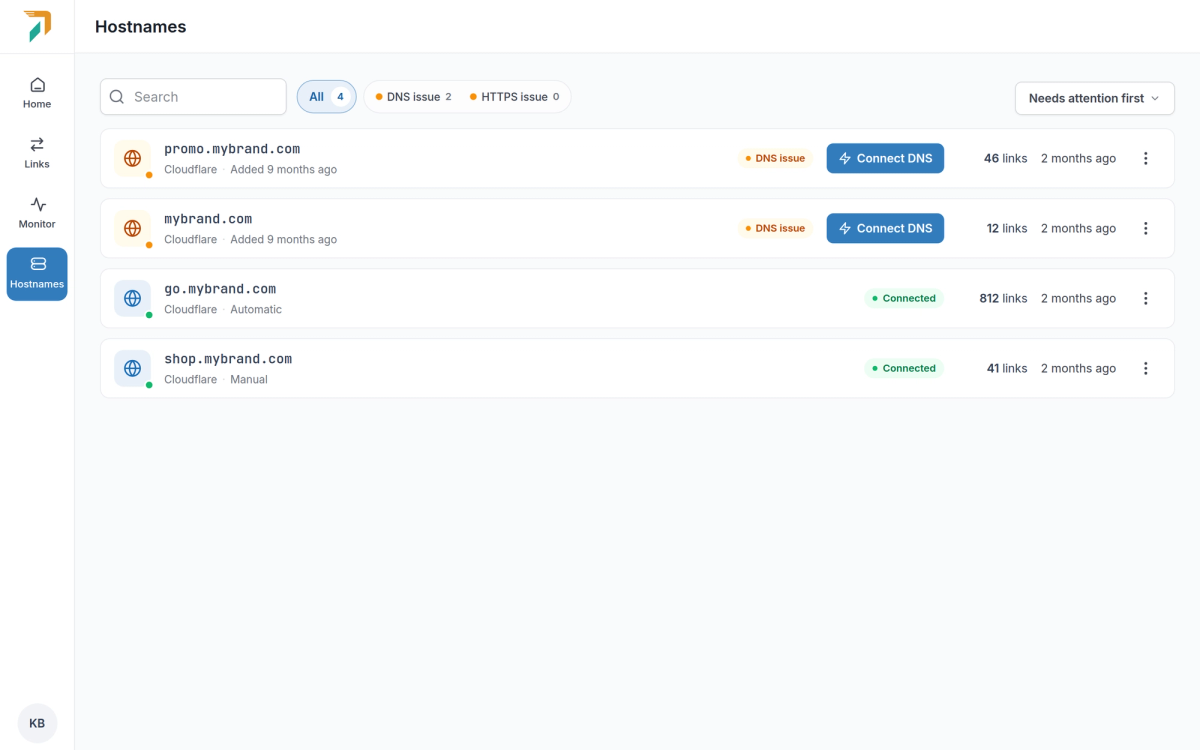
Every hostname that doesn’t point to RedirHub yet now has a Connect DNS button. It opens one window that shows where your DNS is hosted, what is missing and the quickest way to fix it.
Automatic setup with Cloudflare#
Connect DNS → Automatic
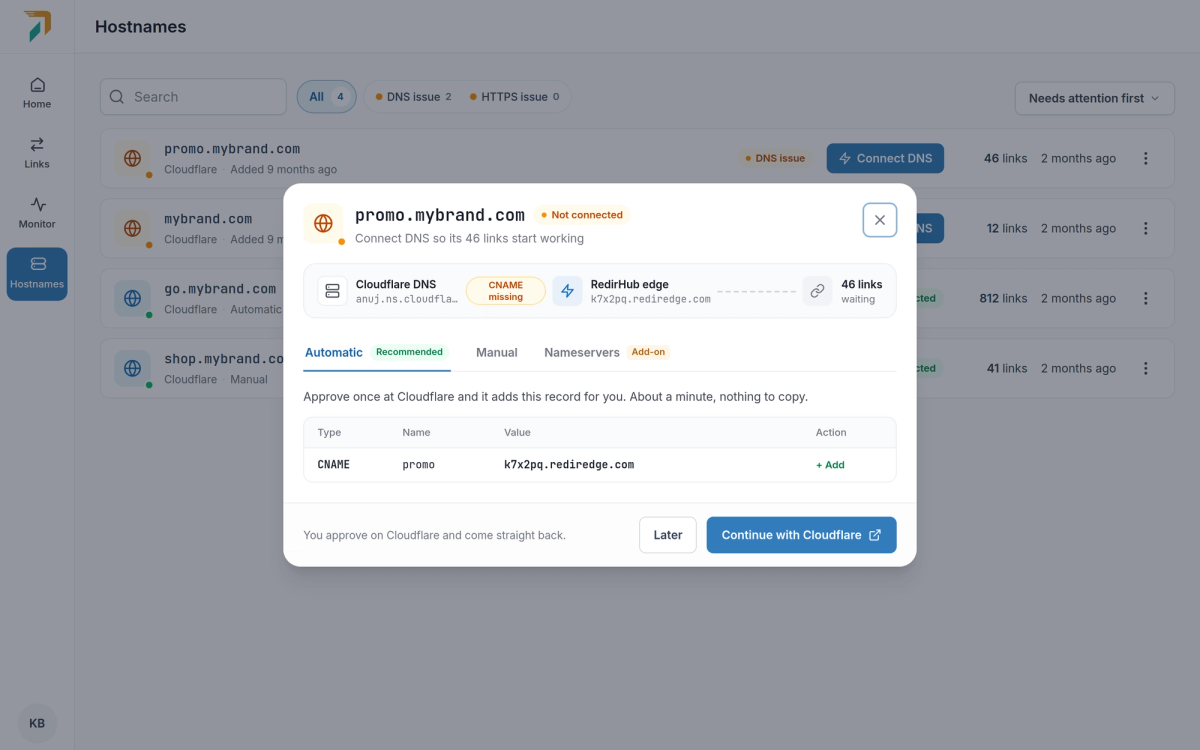
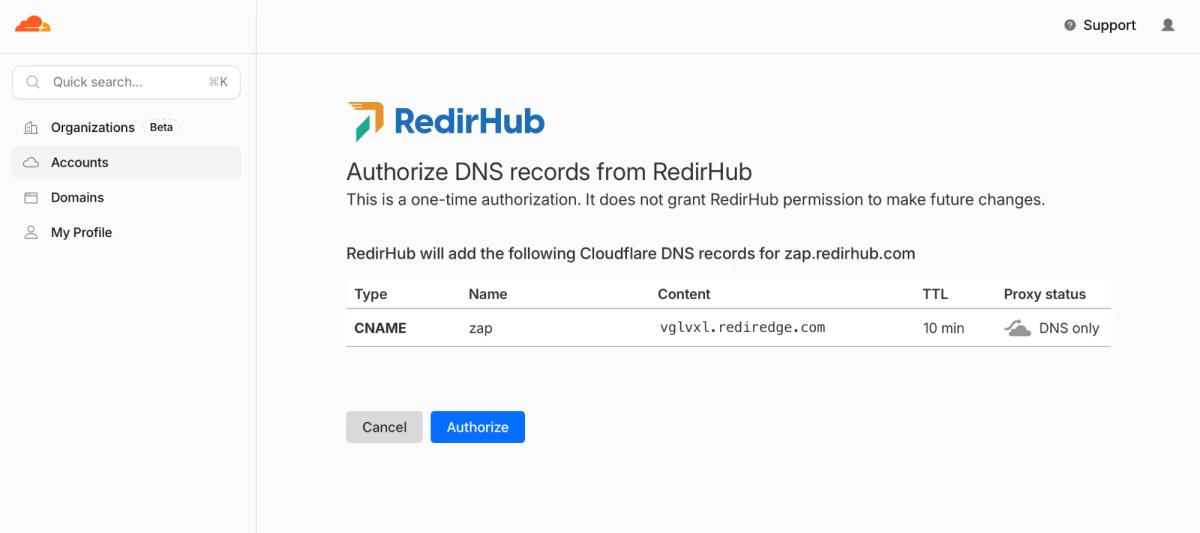
If your DNS is at Cloudflare, choose Continue with Cloudflare. RedirHub shows the exact records first, then Cloudflare asks you to approve them. There are no API keys to create, and the approval is one-time: RedirHub gets no lasting access to your Cloudflare account.
Cloudflare asks you to approve the records once
- Subdomains. One CNAME record, added as DNS only so traffic reaches RedirHub directly.
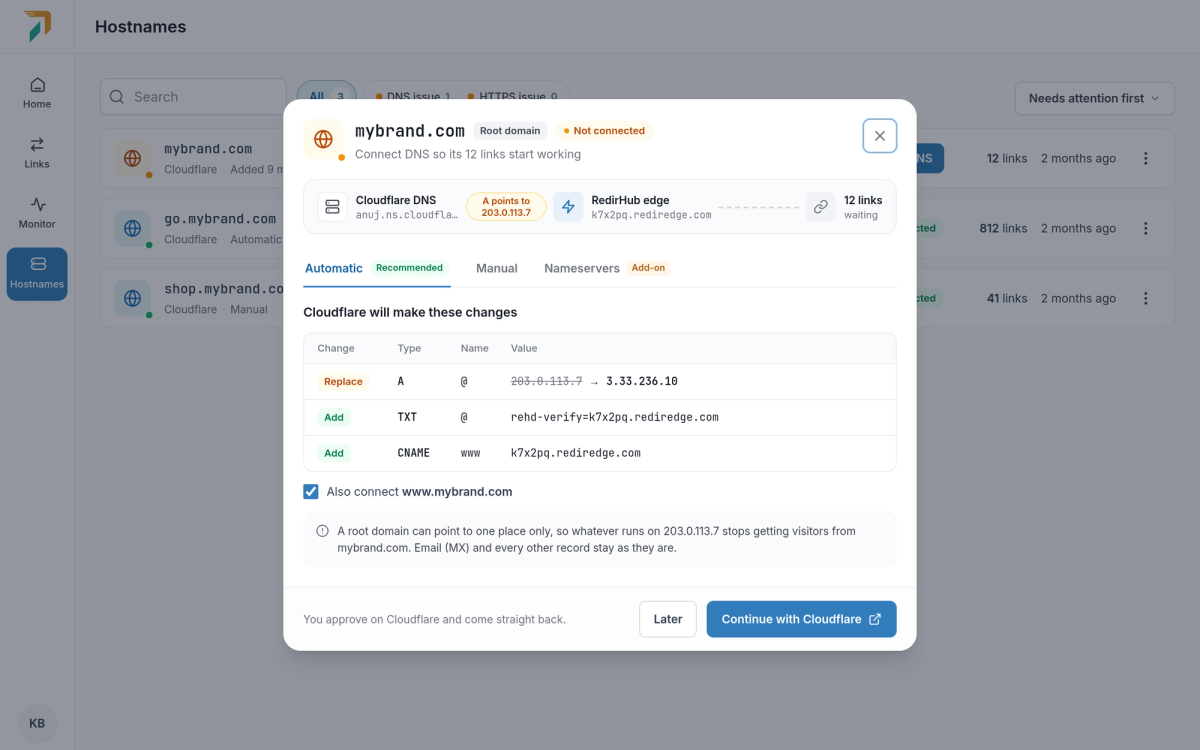
- Root domains. The A record on the root is pointed at RedirHub and a TXT record is added to confirm the domain is yours. Email (MX) and every other record stay as they are.
- www included. Connecting a root domain also connects its www version, unless you untick it.
A root domain, with www connected too
Back in RedirHub, we take it from there#
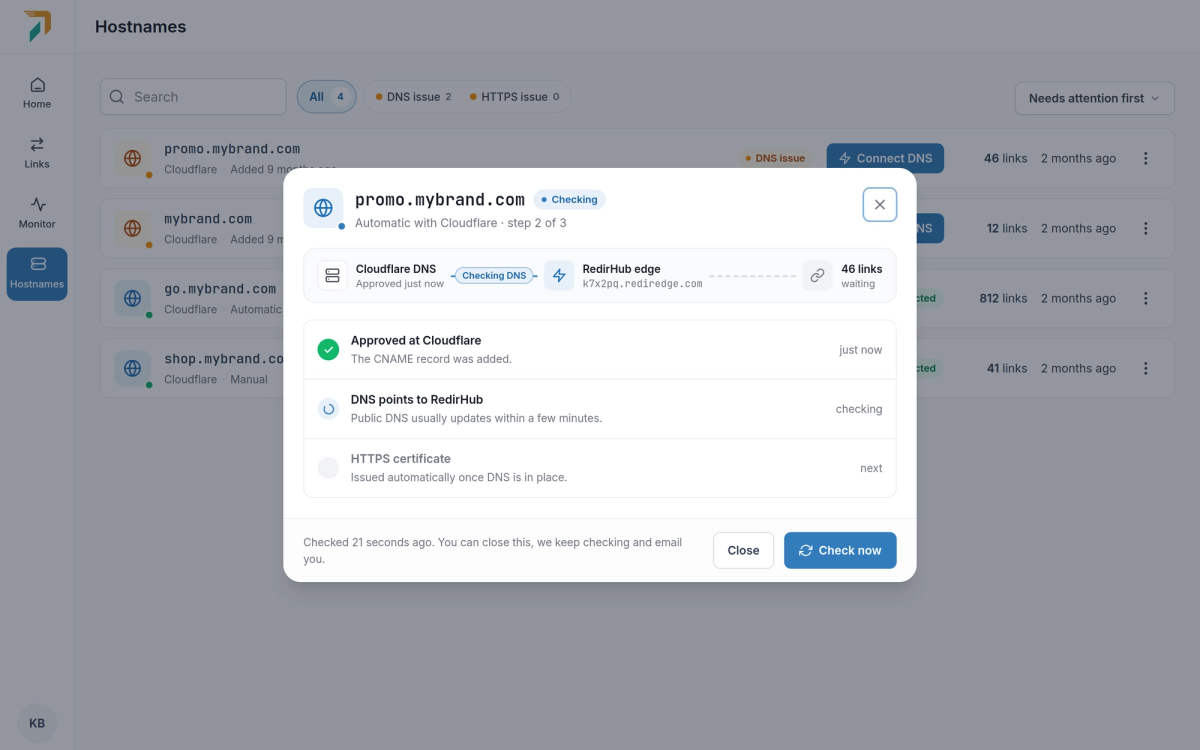
Back from Cloudflare
After you approve, Cloudflare sends you straight back. The window follows each step, from DNS pointing to RedirHub to the HTTPS certificate, and updates by itself. You can close it; we email you when the domain is live.
Manual setup: CNAME or A record#
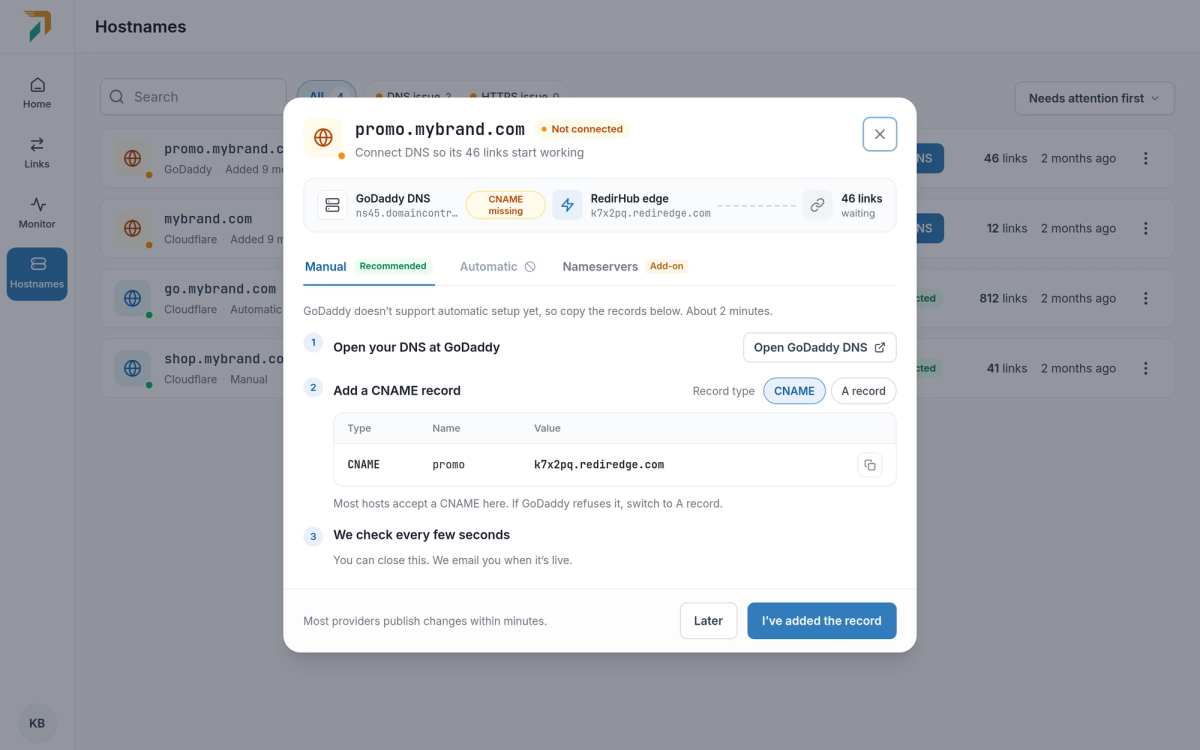
Connect DNS → Manual
For other DNS providers, the Manual tab lists the records to add, with a link to your provider’s DNS settings and a step-by-step guide for the most common providers.
- CNAME by default. It works for most hostnames. If your provider won’t accept it, switch to A record and the records update.
- Root domains. Use an A record, or a CNAME on
@where your provider supports it. Either comes with a TXT record so we can confirm the domain is yours. - Checked as you go. We check every few seconds and tell you which record is still missing.
Automatic setup works with Cloudflare today. More DNS providers that support Domain Connect will follow.