
Key takeaways
A tracking template is an advanced feature. Google says it applies mainly if you use a third-party click tracker or have built your own click tracking. Keep auto-tagging on for Google Analytics 4 and Google Ads attribution. Add a template only for data that auto-tagging does not supply. Every template must contain a final URL placeholder such as {lpurl}, or your landing page URL breaks. Any redirect in the chain must use HTTPS and must end on the same domain as your final URL, or you risk a destination mismatch disapproval.
A Google Ads tracking template is a URL pattern that wraps your final URL, so every click can carry extra data to a third-party tracker or analytics tool. You set it once at the account, campaign or ad group level, and Google fills in the placeholders at click time. Most advertisers need less of it than they think. This guide shows when you need a template, what to put in it, and how to avoid the errors that break tracking or get ads disapproved.
What a tracking template does#
Without a template, a click on your ad goes straight to the final URL you entered. With one, Google builds the click URL from your template, replacing placeholders with real values. The template might send the click to a tracker first, or simply append parameters to your landing page.
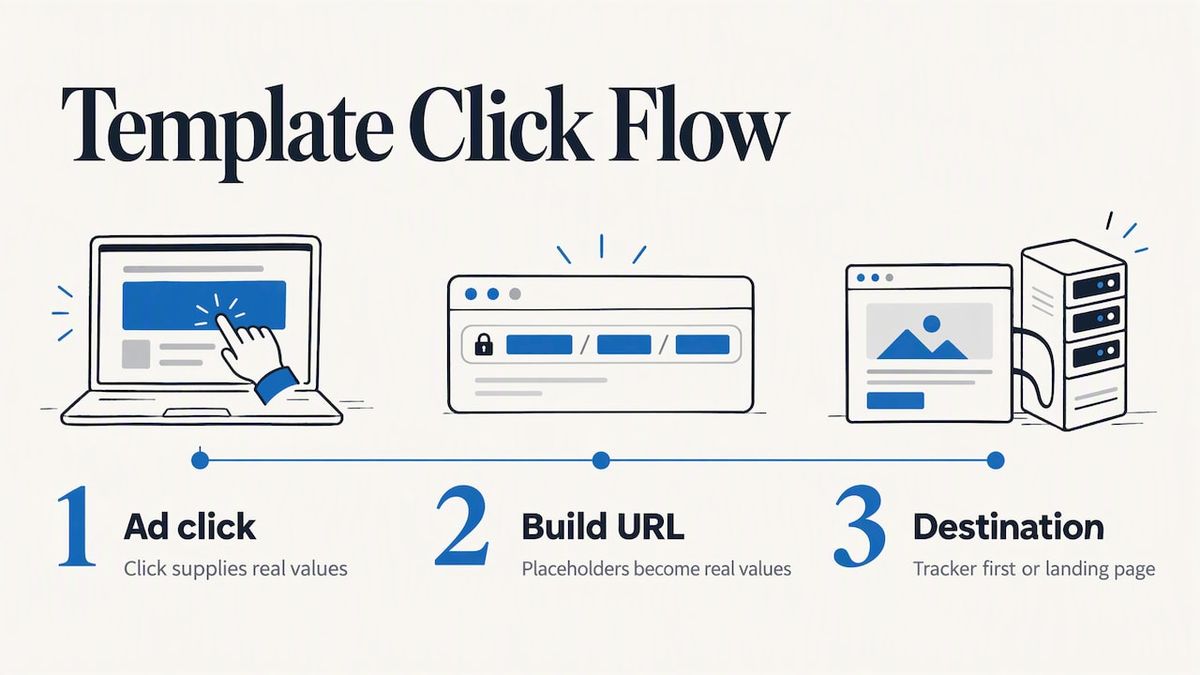
According to the Google Ads Help page on tracking templates[1], the template swaps placeholders like {lpurl} (your final URL) and ValueTrack parameters such as {campaignid} or {keyword} for the actual values when someone clicks.
You can set a template at the account, campaign, ad group, ad, keyword or sitelink level. The most specific level wins. If you set one at the account level and another on a campaign, the campaign’s template applies to that campaign’s ads.
Do you need a tracking template at all?#
Probably not, if your goal is to see which campaign produced which conversion. Google’s own reporting covers that, and GA4 reads the Google click ID that auto-tagging adds. Google describes templates as relevant mainly for advertisers who depend on third-party click trackers or proprietary analytics.
Use this quick test:
| Your situation | What to use |
|---|---|
| You only report inside Google Ads and GA4 | Auto-tagging. No template needed. |
| You want UTM parameters on landing page URLs for cross-channel reports | Final URL suffix (see below) |
| A third-party click tracker or ad server must see each click | Tracking template |
| You pass internal IDs, product feed values or nonstandard data to a CRM | Tracking template plus custom parameters |
| You manage hundreds of ads and want one rule instead of hundreds of edits | Account-level template or suffix |
Auto-tagging and templates work together#
Auto-tagging appends a GCLID (Google Click Identifier) to your destination URLs automatically. WhatConverts explains[2] that you can run both: auto-tagging handles core attribution, and the template handles extra data a third-party tool needs. Turning auto-tagging off to “clean up” URLs is a common way to lose conversion data.
Tracking template vs. final URL suffix#
This is the choice that trips up most people. Both add parameters to the URL, but they behave differently.
- Tracking template: controls the whole click URL. It can route through a tracker, and it must include a final URL placeholder.
- Final URL suffix: only appends parameters to the end of your final URL. It cannot send a click through another domain.
Google’s documentation treats the Final URL suffix as the cleaner home for standard UTM parameters, because those parameters survive parallel tracking. Parallel tracking, which Google introduced in 2018, loads your landing page while the click measurement happens in the background. GA Connector’s write-up[3] notes that this is why the older approach of stuffing UTMs into a template stopped working reliably.
A practical rule: if the parameters are only for your own analytics, use the suffix. If a third party must receive the click first, use the template.
Building your template step by step#
1. Start with the final URL placeholder#
Google’s ValueTrack help page[4] states that templates at the account, campaign or ad group level must include a parameter that inserts your final URL, such as {lpurl}. Leave it out and the landing page URL breaks. Dynamic Search Ads and auto-targets require it at every level.
The simplest valid template is just:
{lpurl}2. Add parameters with the right separator#
If your final URLs have no query string yet, start parameters with a question mark. If they might already have one, use {lpurl} followed by your parameters and think about how the two join. The safest habit is to keep landing page URLs clean and put your parameters in the template or suffix consistently, then test one live click.
A UTM-style example:
{lpurl}?utm_source=google&utm_medium=cpc&utm_campaign={campaignid}&utm_content={creative}&utm_term={keyword}To add several ValueTrack parameters, Google says to join them with an ampersand (&).
3. Pick ValueTrack parameters that answer a real question#
The common ones, all documented on Google’s ValueTrack page:
| Parameter | What it returns |
|---|---|
| {campaignid} | The campaign ID |
| {adgroupid} | The ad group ID |
| {keyword} | The keyword that matched (Search) |
| {creative} | The ad ID |
| {matchtype} | The match type that triggered the ad |
| {device} | Device type of the click |
Check the current list before you build, since Google updates it. Do not add parameters just because they exist. Each one should feed a report someone will read.
4. Use custom parameters for readable names#
Google gives you IDs for campaigns and ad groups, not names. Adequate’s guide[5] recommends custom parameters, such as {_campaign_name}, set at the campaign or ad group level, rather than hardcoding names into URLs by hand. You define the value once where it belongs, and the template reads it.
Example:
{lpurl}?utm_source=google&utm_medium=cpc&utm_campaign={_campaign_name}&utm_term={keyword}Then on each campaign, set the custom parameter _campaign_name to something like fall_sale_2026.
5. Test before you scale#
Changes to tracking templates can take 24 to 48 hours to be reflected in live ad serving, per Google’s documentation. Use Google’s “Test” link next to the template, then click a live ad from a private browser window and read the landing page URL in your analytics. Check a mobile click too, since {device} and parallel tracking behave differently there.
Working examples#
Example 1: third-party click tracker
https://tracker.example.com/click?campaign={campaignid}&adgroup={adgroupid}&dest={lpurl}The click goes to the tracker, which logs it and forwards the visitor to the landing page. This is the classic template use case. The tracker URL must be HTTPS.
Example 2: UTM template with a custom parameter
{lpurl}?utm_source=google&utm_medium=cpc&utm_campaign={_campaign_name}&utm_content={creative}Example 3: Shopping campaigns
Shopping has its own rules. Google’s Shopping tracking page[6] notes that only a small group of click measurement providers are approved to measure certain ad interaction events on Google-hosted properties, including local inventory ads. Read it before adding a tracker to a feed-based campaign.
The mistakes that cause disapprovals and lost data#
Destination mismatch#
Google’s destination mismatch policy[7] says that if a tracking template redirect lands users on a different domain than your final URL, the ad can be flagged unless you have prior approval. The warning is not immediate suspension: Google states that violations of this policy do not lead to account suspension without prior warning. If you place tracking directly in a final URL, Google advises putting {ignore} before dynamic parameters.
Practical consequence: the final landing domain, the display URL domain and the end of any redirect chain should all agree.
Redirects that are not HTTPS#
If you use a third-party click tracker, Google requires every redirect to use HTTPS. Insecure redirects or mixed content can break click measurement and cause disapprovals or lost data.
Forgetting parallel tracking#
A tracker that only works when it fully loads before the page renders can fail under parallel tracking. Ask your tracker vendor whether it supports it, and prefer the final URL suffix for plain UTMs.
Every redirect hop costs time#
Parallel tracking matters because every redirect in front of the landing page is a round trip the visitor waits for. In our redirect speed benchmark[8], which measures 25 redirect providers from Washington, D.C., Frankfurt and Tokyo, the median time to first byte of a single redirect ranged from 11 ms to 382 ms between October 11 and 18, 2026. A click that passes through a tracker and then a short link pays that cost twice before the page starts loading.
| Provider | Median time to first byte |
|---|---|
| Amazon CloudFront | 11 ms |
| RedirHub | 16 ms |
| 38 ms | |
| Bitly | 120 ms |
| BL.INK | 382 ms |
To see what your own chain costs, paste the tracking URL into the redirect speed test: it lists every hop with its status code and time to first byte from the same three locations.
Hardcoding names#
Typing campaign names into each URL creates drift. Rename a campaign and your reports split in two. Custom parameters keep the name in one place.
Over-engineering#
Practitioners often pile on UTMs that auto-tagging and the suffix already cover. If a parameter is not used in a report, remove it.
Our perspective: the redirect layer is part of your tracking#
We build redirect and link infrastructure, so we see tracking templates from the other side: what happens to the click after Google hands it off. Three things stand out to us.
First, the domain in the chain matters. Google’s destination mismatch policy rewards stable, branded domains and penalizes chains that end somewhere unexpected. A redirect on your own domain, with SSL managed for you, is easier to defend than a link on a shared shortener you do not control.
Second, parameters die in redirects more often than in templates. If your final URL suffix or template adds UTMs and a redirect later drops the query string, your analytics show direct traffic. Our guide on preserving UTM parameters through redirects covers how to check for that.
Our own traffic shows how often it happens. In 12 hours of RedirHub redirect traffic on October 18, 2026, 1,167 visitor clicks across 52 accounts arrived carrying UTM parameters, and 71% of them reached the destination without those parameters. Bots are left out, and so are the five largest accounts, which make up three quarters of the traffic. Whether a redirect passes the query string on is a setting: query parameter forwarding is included on Core, Pro and Enterprise, so check it on every campaign link before launch.
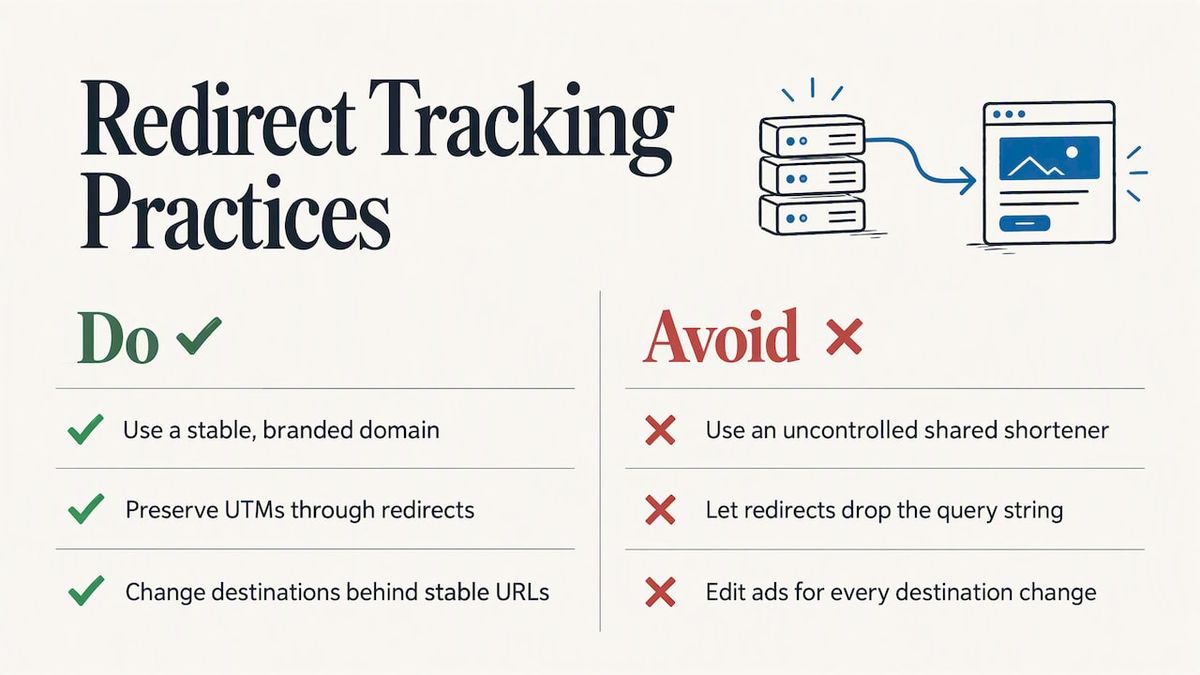
Third, ad destinations change. A landing page gets replaced, a product sells out, a campaign ends. Pointing ads at a stable URL on your own domain, and changing the destination behind it, avoids editing and re-approving ads each time. We cover that approach in paid ad redirect links.
A template is a good tool when a tracker truly needs the click. Otherwise, keep the setup simple and make sure nothing downstream breaks the data you already collect.
Keeping the destination under your control#
If your ads, emails or printed materials send people to URLs you cannot change later, every landing page swap becomes a rebuild. RedirHub lets you run branded links and redirects on your own domain, with SSL, analytics and the ability to change destinations without touching live assets. You can also analyze redirect traffic and clicks in one place, and A/B test landing pages with redirects.
Plans start with Core at $49 per month and Pro at $119 per month; Enterprise is set by contract. See the pricing page for what each tier includes.
A short setup checklist#
- Confirm auto-tagging is on in your account settings.
- Decide whether you need a template or whether a final URL suffix covers your UTMs.
- If you need a template, include {lpurl} (or the right final URL placeholder) and use HTTPS for every redirect.
- Define readable names with custom parameters at the campaign or ad group level.
- Run Google’s test, then check a real click in your analytics on desktop and mobile.
- Wait 24 to 48 hours for changes to take effect before judging results.
- Review monthly: remove parameters nobody uses, and monitor your redirects, for example with redirect monitoring and destination health.
How fast is your tracking chain?
Paste a tracking or redirect URL and see every hop with its status code and time to first byte from Washington, D.C., Frankfurt and Tokyo. Free, no sign-up.
Test my redirectSources
- [1]Set up your tracking template, Google Ads Help
- [2]Set Up ValueTrack and Auto-Tagging for Google Ads, WhatConverts
- [3]How to Add UTM Parameters to Google Ads, GA Connector
- [4]Set up tracking with ValueTrack parameters, Google Ads Help
- [5]UTMs for Google Ads Campaigns, Adequate
- [6]Set up tracking for a Shopping campaign, Google Ads Help
- [7]Destination mismatch, Advertising Policies Help
- [8]RedirHub redirect speed benchmark, October 11–18, 2026
Frequently asked questions
Not for most accounts. Google positions templates as an advanced feature for people who use a third-party click tracker or their own click tracking. If you only need campaign and conversion reporting, auto-tagging with Google Ads and GA4 is enough.
A template defines the entire click URL and can route through another domain. A suffix only adds parameters to the end of your final URL. For plain UTM parameters, the suffix is the cleaner choice.
There is no flat rate. Google Ads works on an auction, and CPM bidding is available on the Display Network, where you bid for 1,000 viewable impressions. Search campaigns use cost-per-click or conversion-based bidding instead, and your actual costs depend on your bid and auction competition.
Go to the Google Ads manager account page, name the account, choose whether it manages your own or client accounts, then set country, time zone and currency. Afterward you can link existing accounts or create new ones. Google’s manager account help notes a limit of 20 Google Ads accounts per email address.

Linh handles the backend systems that keep RedirHub fast and reliable. Her work revolves around performance, scalability, and making sure redirects happen instantly, no matter where users are. She also writes about redirect performance and link tracking. She likes solving complex problems quietly.
Related Articles
View All Articles